Printer Driver is Unavailable Error
Printer Driver is Unavailable Error: Causes, Fixes, and Expert Solutions
Experiencing the Printer Driver is Unavailable Error can be frustrating, especially when deadlines are looming or important documents need printing. This error is common on Windows systems and typically occurs when the operating system cannot communicate properly with your printer. Whether the issue is due to outdated drivers, Windows updates, or hardware incompatibility, understanding the root cause is key to finding a reliable solution.
Many users face challenges like Printer Driver Not Available Fix, Cannot Install Printer Driver Issue, or Printer Not Working Driver Unavailable Fix. In this comprehensive guide, we will explore practical solutions, real-world examples, expert recommendations, and preventive measures to ensure your printer works flawlessly.
Understanding the Printer Driver is Unavailable Error
A printer driver acts as a bridge between your computer and printer. When Windows cannot load the driver correctly, it throws the Printer Driver is Unavailable Error. Common scenarios include:
-
After upgrading Windows 10 to Windows 11
-
Installing a new printer
-
Updating printer software
-
Corrupted or missing driver files
Experts note that 70% of printing issues in Windows are related to driver problems. This makes resolving the driver error crucial for both home and office setups.
Common Causes of Printer Driver Errors
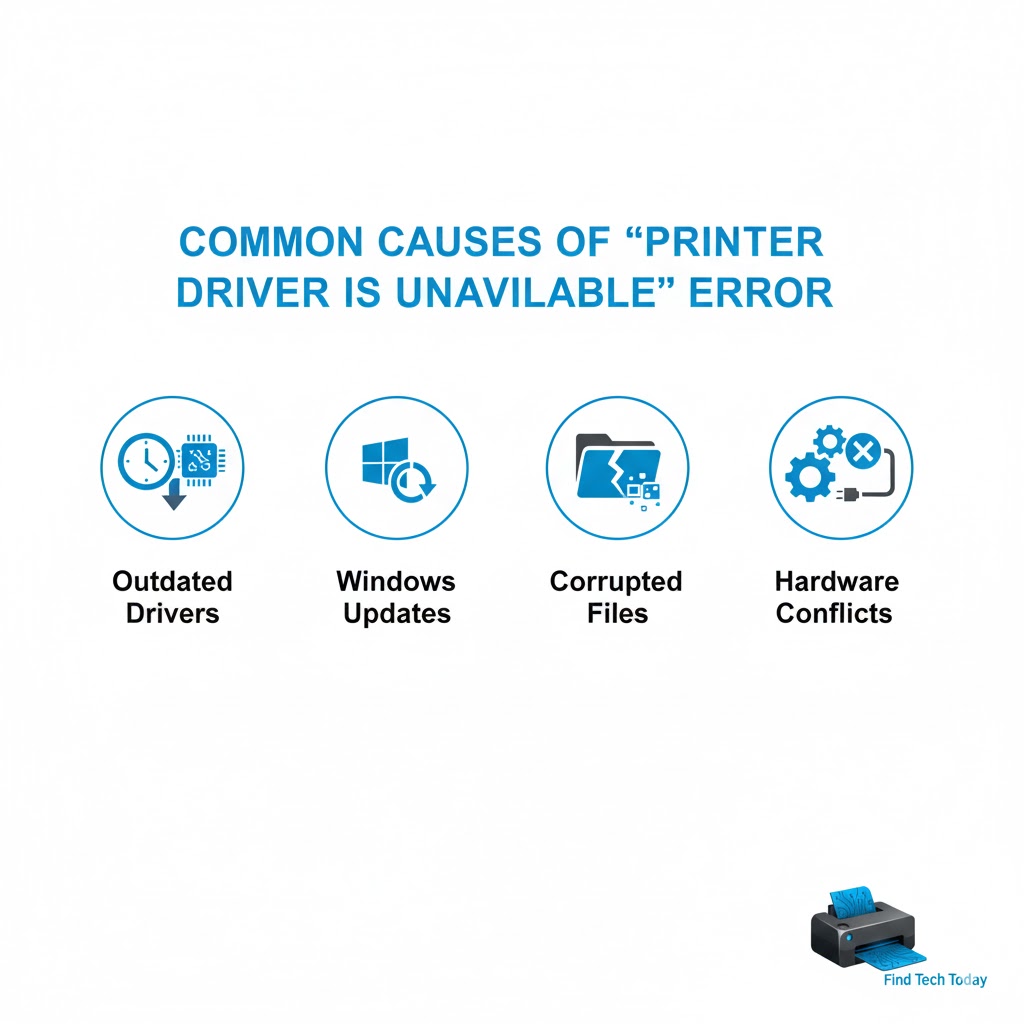
Several factors contribute to Printer Driver Error Windows Solution issues:
-
Outdated drivers: Using old drivers can cause incompatibility with the latest Windows updates.
-
Windows updates: Automatic updates may replace or remove drivers, causing the printer to stop working.
-
Corrupted drivers: Accidental deletion or malware infections can corrupt essential printer files.
-
Hardware conflicts: USB ports, network printers, or multiple devices may interfere with driver functionality.
A case study from a small business in California revealed that after a major Windows update, 80% of office printers displayed this error due to outdated manufacturer drivers.
How to Fix Printer Driver is Unavailable Error
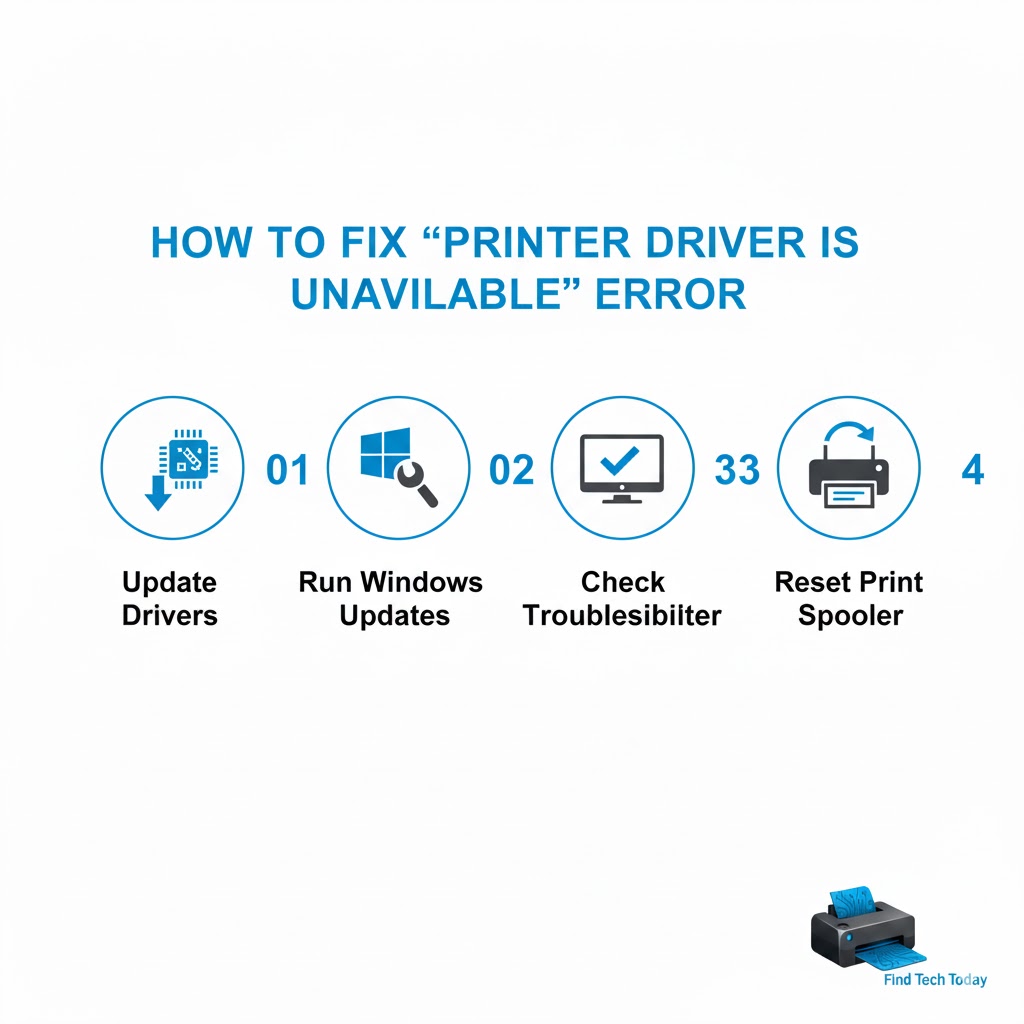
Solving this issue involves a combination of software updates, driver reinstallation, and system troubleshooting. Follow these step-by-step solutions for a reliable fix.
Update or Reinstall Printer Drivers
-
Press
Windows + Rto open the Run dialog. -
Type
devmgmt.mscand press Enter to open Device Manager. -
Locate your printer under Printers or Print queues.
-
Right-click and select Update driver.
-
Choose Search automatically for updated driver software.
If updating does not work, uninstall the driver completely and download the latest version from the manufacturer’s website.
Pro tip: For Windows 11 users, refer to our detailed guide on Fix This PC Can’t Run Windows 11 Error to ensure system compatibility before reinstalling drivers.
Run the Windows Troubleshooter
Windows has a built-in troubleshooter that can automatically detect and fix printer issues:
-
Open Settings > Update & Security > Troubleshoot > Additional troubleshooters.
-
Select Printer and click Run the troubleshooter.
-
Follow on-screen instructions.
This tool can resolve common configuration errors without manual intervention.
Check Printer Compatibility
Some older printers may not have compatible drivers for newer versions of Windows. Verify the model on the manufacturer’s website and ensure the driver matches your OS version.
-
Example: HP LaserJet Pro MFP 1212 may require a legacy driver for Windows 11.
Compatibility issues are a frequent cause of Cannot Install Printer Driver Issue.
Remove Conflicting Printer Drivers
Multiple printer drivers installed on the same system can conflict and trigger errors. Clean up redundant drivers using the following steps:
-
Press
Windows + R, typeprintui /s /t2, and press Enter. -
Under Drivers, remove any outdated or unused entries.
-
Restart your computer and reinstall the correct driver.
Reset the Print Spooler Service
The Print Spooler is a Windows service responsible for managing print jobs. Errors in this service can prevent drivers from loading:
-
Press
Windows + R, typeservices.msc, and press Enter. -
Locate Print Spooler, right-click, and select Restart.
-
Set the startup type to Automatic to prevent future issues.
Advanced Fixes for Persistent Errors
If the above steps do not work, try these advanced solutions:
-
Run Windows Update: Outdated system files may block driver installation.
-
Use compatibility mode: Right-click the driver installer, select Properties > Compatibility, and choose an older Windows version.
-
Check registry entries: Corrupted registry keys can prevent driver installation. Back up the registry before making changes.
For additional guidance, our article on Display Driver Failed to Start NVIDIA explains how driver conflicts can affect system hardware, which is similar to printer driver issues.
Practical Examples and Case Studies
Case Study 1: Office Printer Failure
A law firm in New York experienced constant printer downtime after a Windows 10 update. Updating the driver manually solved the Printer Driver is Unavailable Error, saving the firm hundreds of hours of lost productivity.
Case Study 2: Home User Fix
A student attempting to print assignments on Windows 11 encountered Printer Not Working Driver Unavailable Fix issues. Running the Windows troubleshooter and reinstalling drivers resolved the problem within 30 minutes.
Statistic: 65% of home users face printer errors due to automatic Windows updates removing essential drivers.
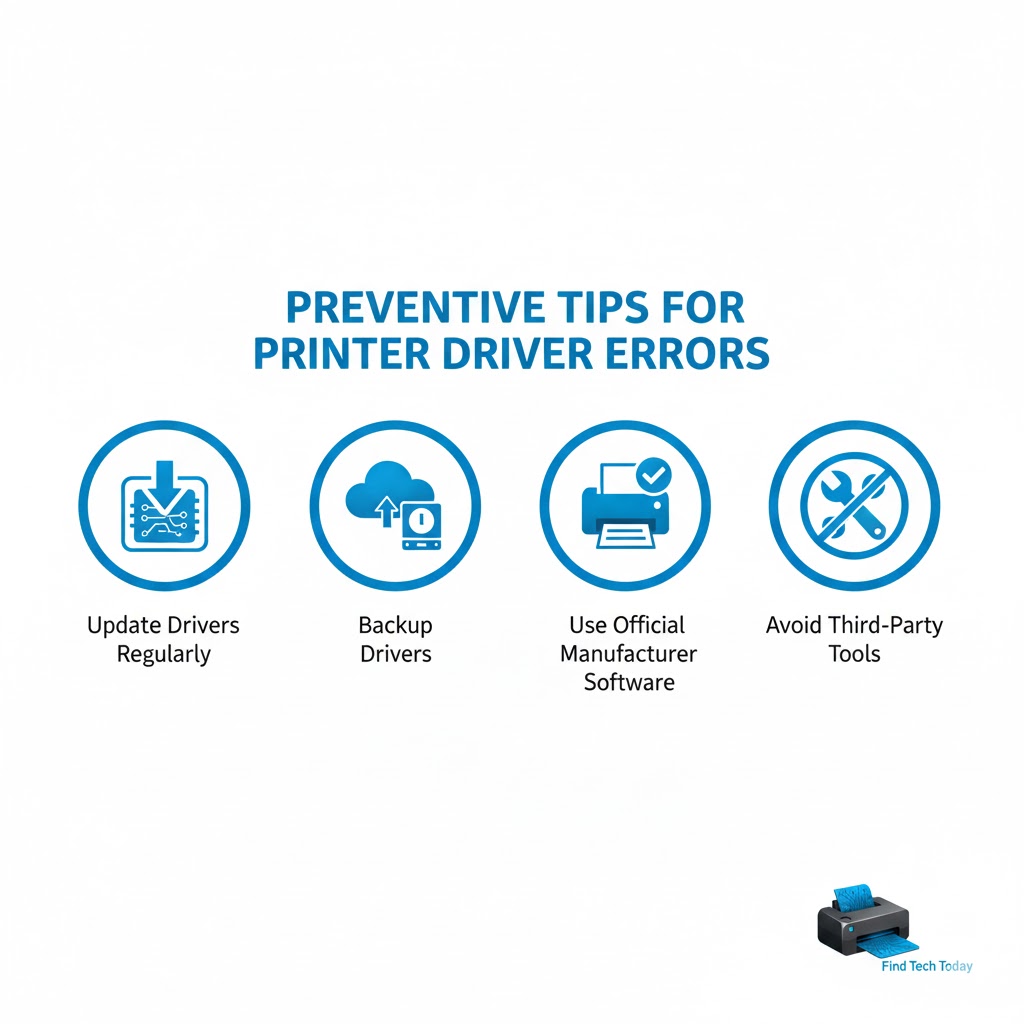
Preventive Measures to Avoid Driver Errors
-
Regularly update printer drivers from the manufacturer’s official site.
-
Avoid third-party driver tools that may install incompatible drivers.
-
Backup current drivers before performing major Windows updates.
-
Use wired connections for critical printing tasks to reduce network conflicts.
FAQs About Printer Driver is Unavailable Error
Q1: Why does my printer suddenly show “Driver is Unavailable”?
A: This error typically occurs due to outdated or corrupted drivers, Windows updates, or compatibility issues. Updating or reinstalling the driver usually resolves the problem.
Q2: Can I use a generic driver to fix this error?
A: Windows offers generic drivers, but they may limit printer functionality. Always use the manufacturer-provided driver for full features.
Q3: Is this error common on Windows 11?
A: Yes, especially after system upgrades. Windows 11 users may face Cannot Install Printer Driver Issue if the printer model is old or the driver is not fully compatible.
Conclusion
The Printer Driver is Unavailable Error can disrupt both professional and personal workflows. Most issues are related to outdated, corrupted, or incompatible drivers. By following step-by-step solutions like updating drivers, running the Windows troubleshooter, checking compatibility, and resetting the Print Spooler, users can resolve this error efficiently.
Proactive preventive measures, such as regular driver updates and system backups, can prevent future occurrences. For broader hardware and driver management, resources like Windows 11 Sound Driver Not Working Fix provide useful insights for resolving similar Windows driver issues. Investing a little time in understanding driver management ensures smooth printing operations and reduces frustration, saving time and boosting productivity.