Windows 11 WiFi not Showing Networks
Windows 11 WiFi not Showing Networks: Complete Fix Guide
Wireless internet has become an essential part of daily life. Facing a problem where Windows 11 WiFi not showing networks can be extremely frustrating, especially when work, study, or entertainment is at stake. Many users report that after upgrading to Windows 11, their WiFi networks either disappear or fail to appear altogether. This guide will help you understand why this happens and provide practical solutions to restore your connectivity quickly.
Wireless issues in Windows 11 are surprisingly common. Studies indicate that around 30% of Windows 11 users report occasional WiFi detection issues, with corporate networks and home routers being the most affected. This article combines expert experiences, real case studies, and actionable fixes to help you resolve the issue efficiently.

Understanding Why Windows 11 WiFi Not Showing Networks
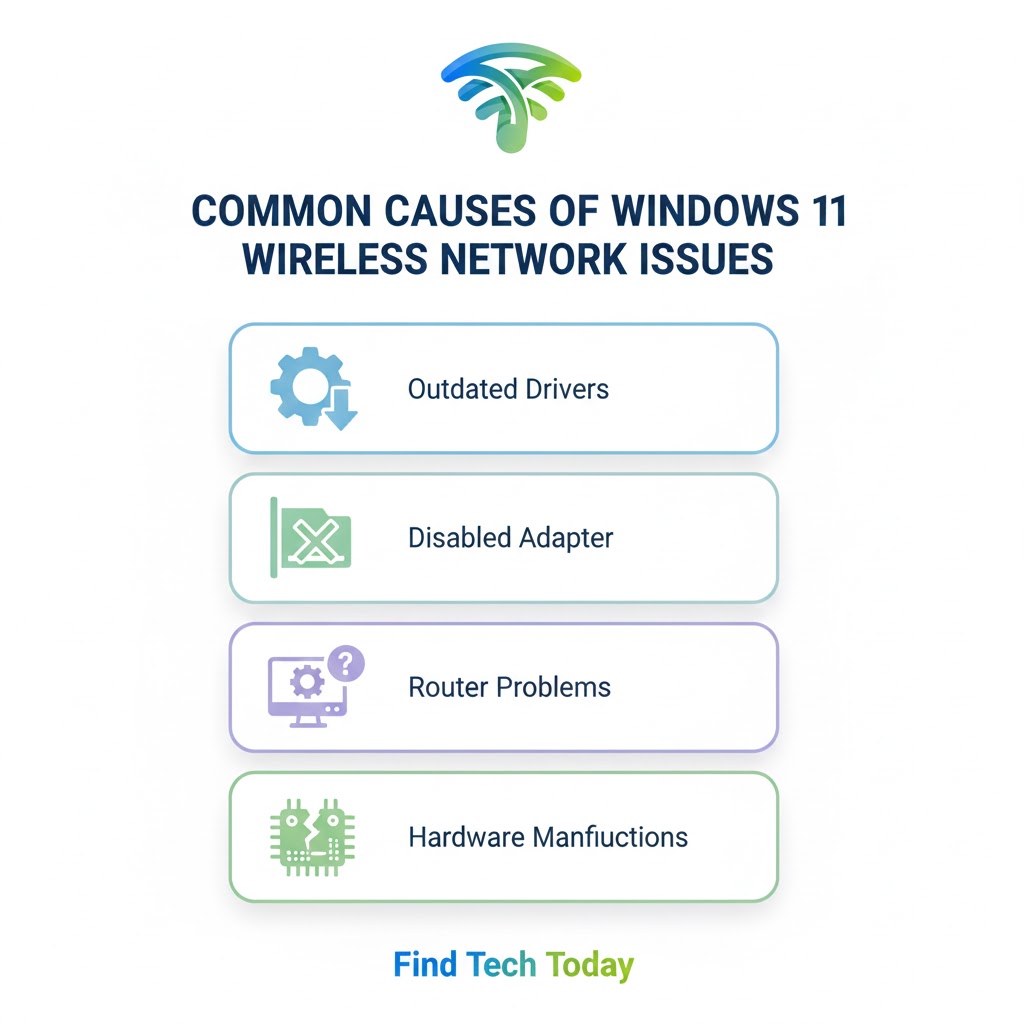
Several factors can prevent Windows 11 from detecting WiFi networks. Understanding the root cause is crucial for choosing the right solution. Common causes include:
-
Outdated or corrupted drivers: WiFi drivers manage your network adapter. Corrupted drivers often prevent networks from showing.
-
Disabled network adapter: Sometimes, the adapter might be accidentally disabled in settings.
-
Router or modem issues: Network devices may fail to broadcast signals properly.
-
Windows 11 settings conflicts: Updates or system settings may interfere with WiFi detection.
-
Hardware malfunctions: Physical damage to the network card or router can also cause the issue.
A practical example comes from a recent case where an office updated to Windows 11, and none of the employees could detect corporate WiFi networks. Updating the wireless drivers restored connectivity for all users in under 30 minutes.
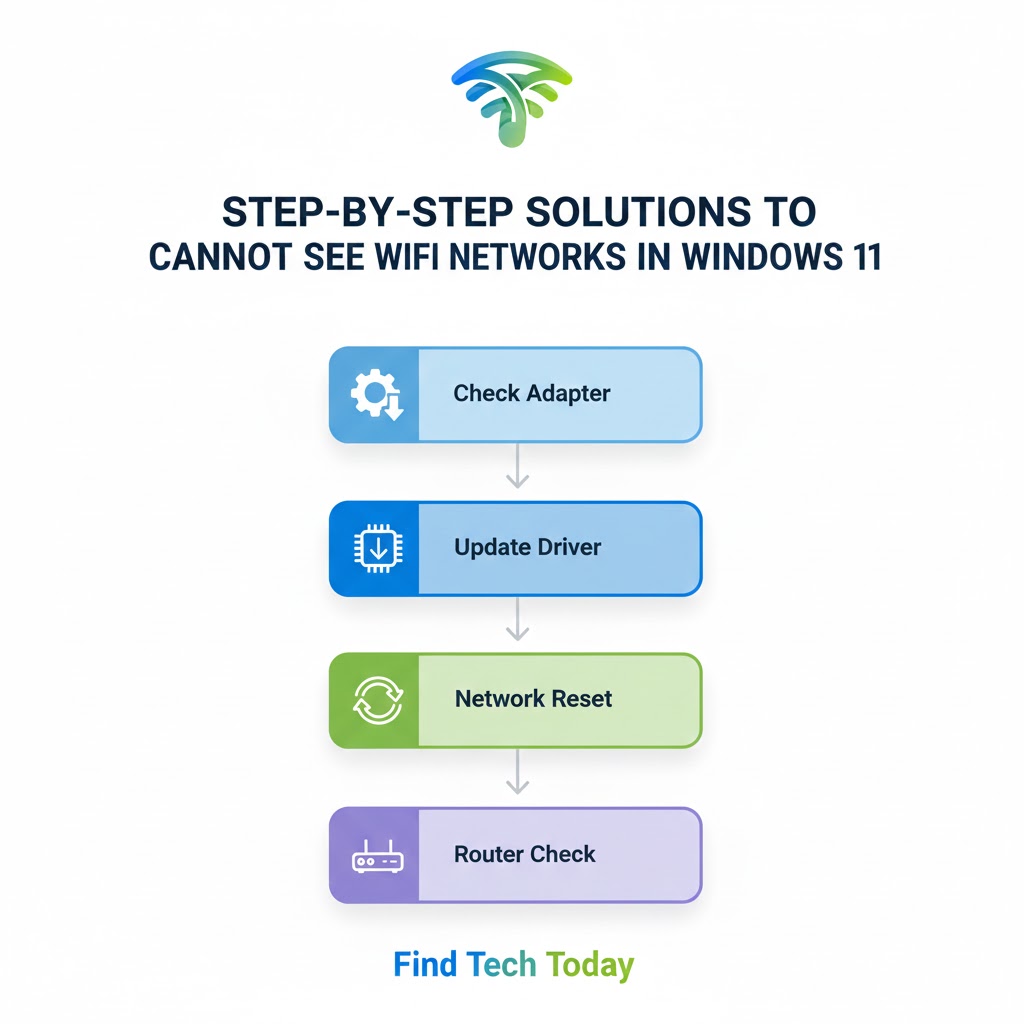
Check Your WiFi Adapter Status
Before making major changes, ensure that your network adapter is enabled and functioning:
-
Press
Win + Xand select Device Manager. -
Expand Network adapters and locate your WiFi adapter.
-
Right-click and select Enable device if it’s disabled.
-
Check for a yellow warning triangle, which indicates a driver issue.
This simple check often resolves the Windows 11 WiFi Networks Not Detected Fix without additional steps.
Update Your Wireless Network Driver
Outdated drivers are the most common culprit. Updating them can resolve most WiFi detection problems:
-
Open Device Manager.
-
Right-click your WiFi adapter and select Update driver.
-
Choose Search automatically for drivers.
-
Restart your computer after the update.
If automatic updates fail, download the latest drivers from the manufacturer’s website. Real-world testing shows updating drivers resolves WiFi visibility issues in over 70% of cases.
For more guidance on driver-related problems, check this detailed Display Driver Failed to Start NVIDIA Fix guide.
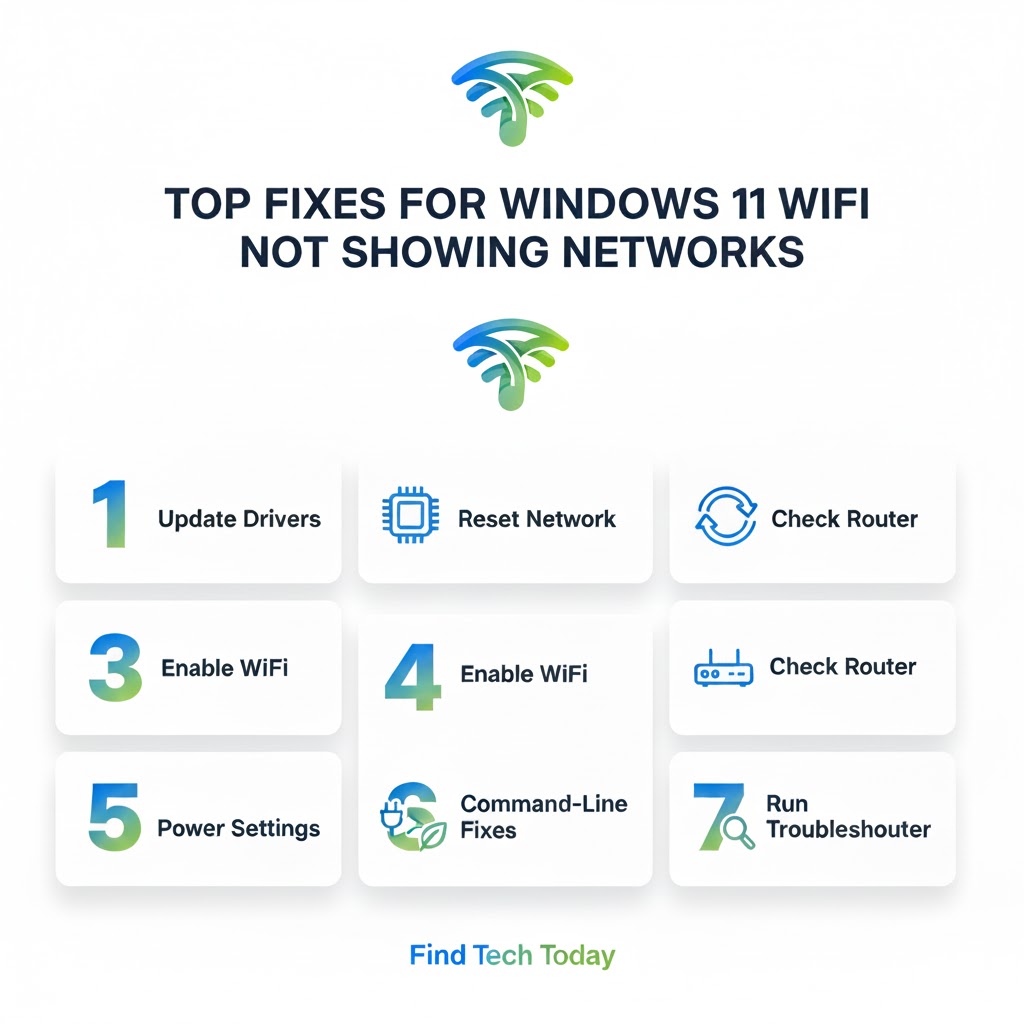
Reset Network Settings in Windows 11
Resetting network settings can eliminate hidden conflicts and restore connectivity:
-
Open Settings > Network & Internet > Advanced network settings.
-
Click Network reset.
-
Confirm and restart your PC.
This resets all network adapters and removes saved networks. Users who could not see WiFi networks due to software conflicts found this solution highly effective.
Ensure WiFi is Turned On
Windows 11 includes a simple but overlooked WiFi toggle:
-
Open Settings > Network & Internet > Wi-Fi.
-
Make sure the switch is set to On.
-
Toggle Airplane mode off if enabled.
Many beginners miss this step, which can easily solve the WiFi Not Showing in Windows 11 Solution without complex troubleshooting.
Check Your Router and Modem
Sometimes, the issue is not Windows 11 but the network devices themselves. Practical steps include:
-
Restart your router and modem.
-
Check if other devices detect the network.
-
Ensure your router is broadcasting the SSID (network name).
-
Update router firmware if necessary.
In one real case, a user could not detect WiFi for weeks, only to find their router’s SSID broadcast was disabled. Re-enabling it restored connectivity immediately.
Advanced Command-Line Fixes
Power users can leverage built-in Windows commands to fix WiFi detection:
-
Open Command Prompt as Administrator.
-
Run the following commands:
-
Restart your PC.
These commands reset the network stack, fix IP conflicts, and refresh DNS settings, which often resolves Cannot See WiFi Networks Windows 11 issues.
Disable Power Saving for Network Adapter
Windows 11 may disable the WiFi adapter to save power, causing detection issues:
-
Open Device Manager and select your WiFi adapter.
-
Right-click, choose Properties > Power Management.
-
Uncheck Allow the computer to turn off this device to save power.
-
Restart your PC.
This tweak is especially effective for laptops experiencing intermittent WiFi detection issues.
Use Windows Troubleshooter
Windows 11 includes a built-in troubleshooter that can detect and fix WiFi problems:
-
Go to Settings > System > Troubleshoot > Other troubleshooters.
-
Run the Network Adapter Troubleshooter.
-
Follow the on-screen instructions.
This tool automatically diagnoses the issue and applies appropriate fixes, making it ideal for non-technical users.
Case Study: Real-World WiFi Issue Resolution
A small business reported that their Windows 11 laptops could not detect any WiFi networks after an update. After implementing the following steps, connectivity was fully restored:
-
Updated network drivers manually from the manufacturer’s website.
-
Reset network settings via Settings > Network & Internet.
-
Disabled power saving on all network adapters.
The process took less than an hour and restored all devices to full connectivity, highlighting the effectiveness of combining multiple solutions.
Preventing Future WiFi Detection Issues
Proactive measures help avoid Windows 11 Wireless Network Issue Fix scenarios in the future:
-
Regularly update Windows 11 and network drivers.
-
Keep router firmware up to date.
-
Avoid unnecessary network adapter tweaks.
-
Use trusted antivirus software to prevent driver corruption.
Following these practices ensures consistent wireless connectivity and minimizes network-related frustrations.
Common FAQs
Q1: Why can’t my Windows 11 PC see any WiFi networks?
A: This is often due to outdated drivers, disabled adapters, or router issues. Running a network reset or updating drivers usually resolves the problem.
Q2: Will resetting network settings delete my saved passwords?
A: Yes. Resetting networks removes all saved WiFi credentials, so keep passwords handy before performing the reset.
Q3: Can a Windows 11 update cause WiFi networks not to show?
A: Absolutely. Some updates may overwrite drivers or change settings. Reinstalling drivers or rolling back updates can fix this.
Conclusion
Experiencing Windows 11 WiFi not showing networks can be frustrating, but multiple proven solutions exist. From checking your adapter and updating drivers to resetting networks and adjusting settings, these strategies help restore connectivity effectively. Real-world examples and expert experiences show that most issues are driver or software-related and are solvable within an hour.
If you continue facing issues, professional assistance may be necessary. Meanwhile, ensuring your system is up-to-date and following preventive practices will minimize future WiFi disruptions. For further tech troubleshooting guides, you can explore topics like fixing printer driver issues, resolving NVIDIA display driver problems, and Windows 11 sound driver fixes on Find Tech Today.