Ethernet not Working in Windows 10
Ethernet not Working in Windows 10: Complete Troubleshooting Guide
Experiencing Ethernet not working in Windows 10 can be frustrating, especially when you rely on a wired connection for stable internet. Many users face sudden disconnections, slow speeds, or complete failure in connecting. Whether it’s a home setup, office network, or gaming environment, resolving Ethernet issues quickly is crucial for uninterrupted productivity.
This guide provides step-by-step solutions for Windows 10 Ethernet connection problems. It covers real-world cases, expert insights, and practical tips to restore your wired internet connection. By the end, even non-technical users will be able to troubleshoot Ethernet adapter issues effectively.

Common Causes of Ethernet Not Working on Windows 10
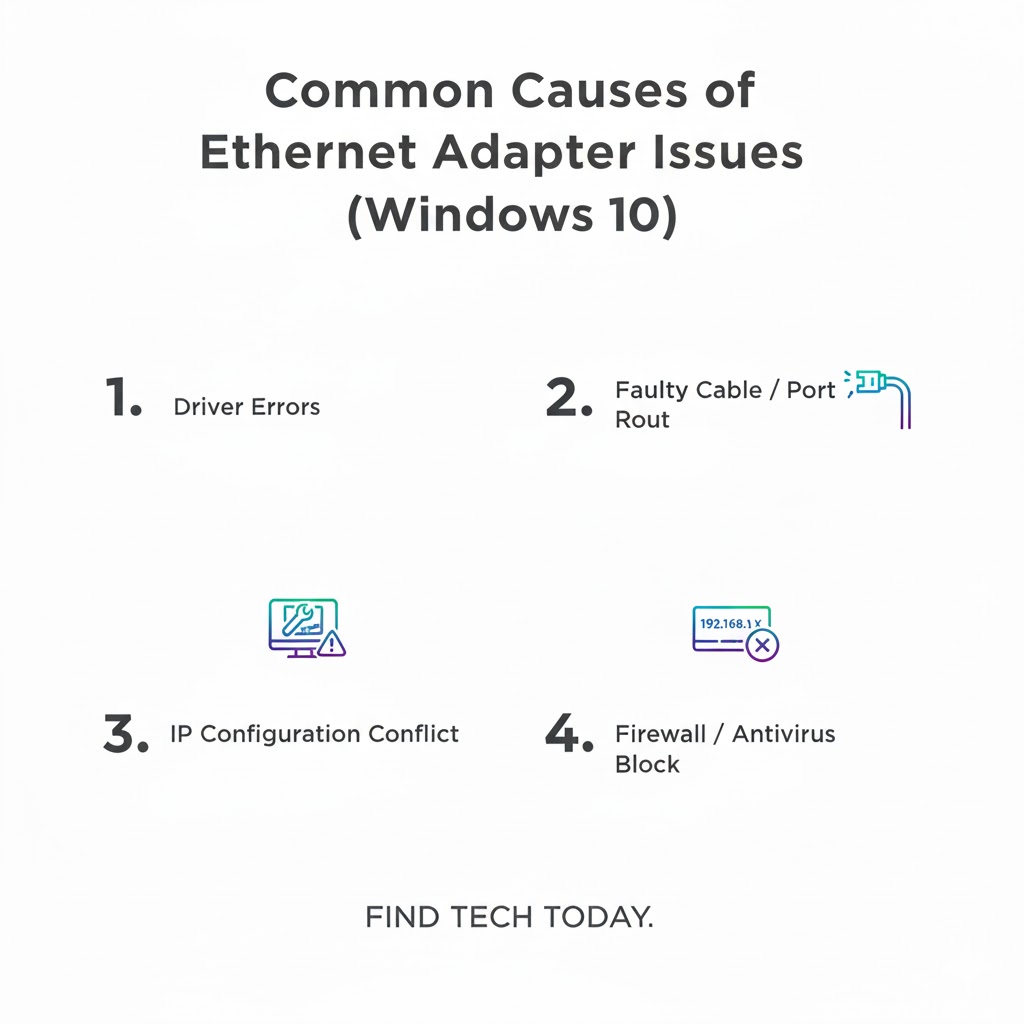
Understanding why Ethernet connections fail is the first step toward resolving the problem. Some frequent causes include:
-
Faulty Ethernet cable or port: Physical damage to the cable or worn-out LAN ports can prevent proper connectivity.
-
Disabled network adapter: Sometimes, the Ethernet adapter is disabled in Windows settings.
-
Driver issues: Outdated, missing, or corrupted network drivers are a leading cause.
-
IP configuration errors: Incorrect IP address or DNS settings may block connectivity.
-
Software conflicts: VPNs, firewalls, or recent Windows updates can interfere with Ethernet connections.
Expert experience suggests that physical issues account for nearly 30% of Ethernet problems, while software and driver conflicts are responsible for over 50% of cases.
Windows 10 Ethernet Connection Not Working Fix: Step-by-Step
Follow these structured steps to troubleshoot Ethernet not working on Windows 10.
Check Hardware First
-
Ensure your Ethernet cable is securely connected to both the computer and router.
-
Try a different cable or port to rule out physical damage.
-
Test the Ethernet connection on another device to verify if the issue is device-specific.
Enable Ethernet Adapter
-
Press
Windows + Xand select Network Connections. -
Locate your Ethernet adapter. Right-click and select Enable if disabled.
-
Restart your computer to apply changes.
Update or Reinstall Network Drivers
-
Press
Windows + R, typedevmgmt.msc, and press Enter to open Device Manager. -
Expand Network adapters, right-click your Ethernet adapter, and select Update driver.
-
If updating fails, select Uninstall device and restart your PC. Windows will reinstall the driver automatically.
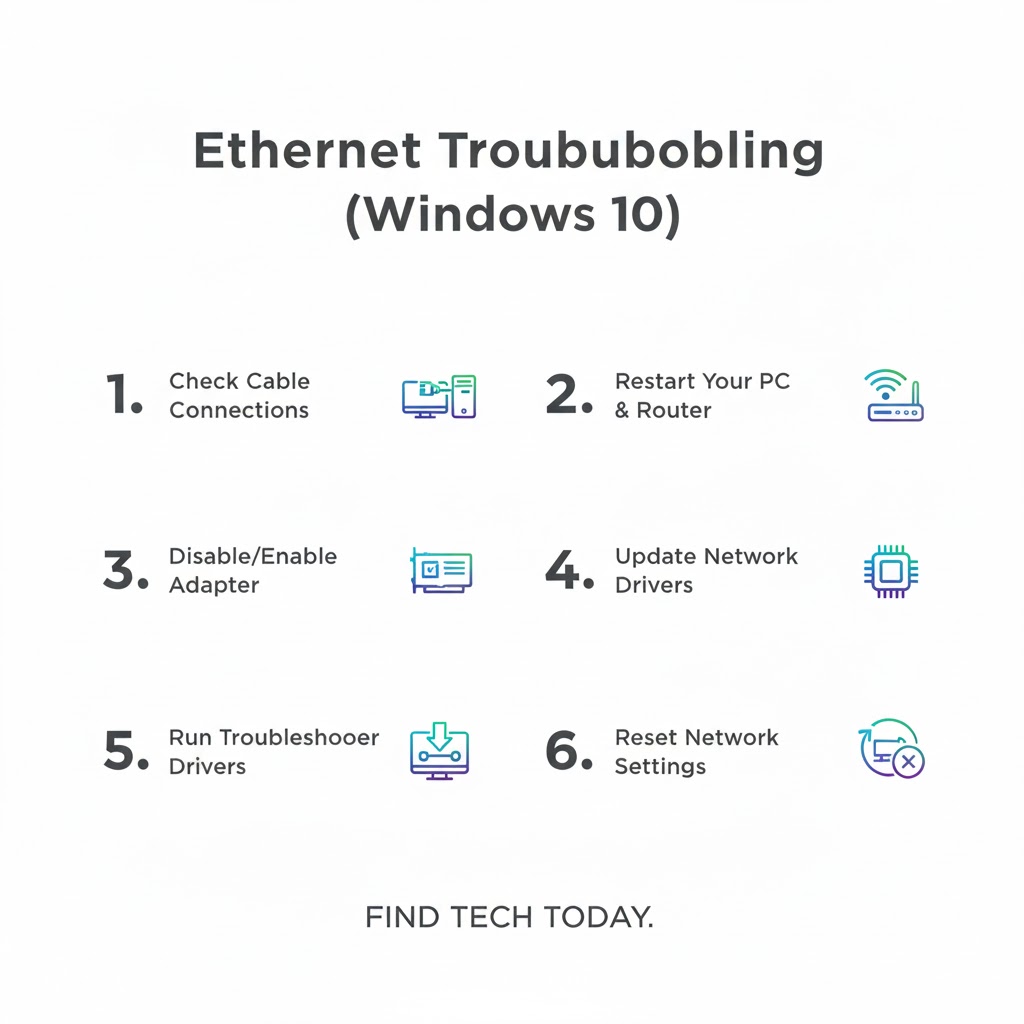
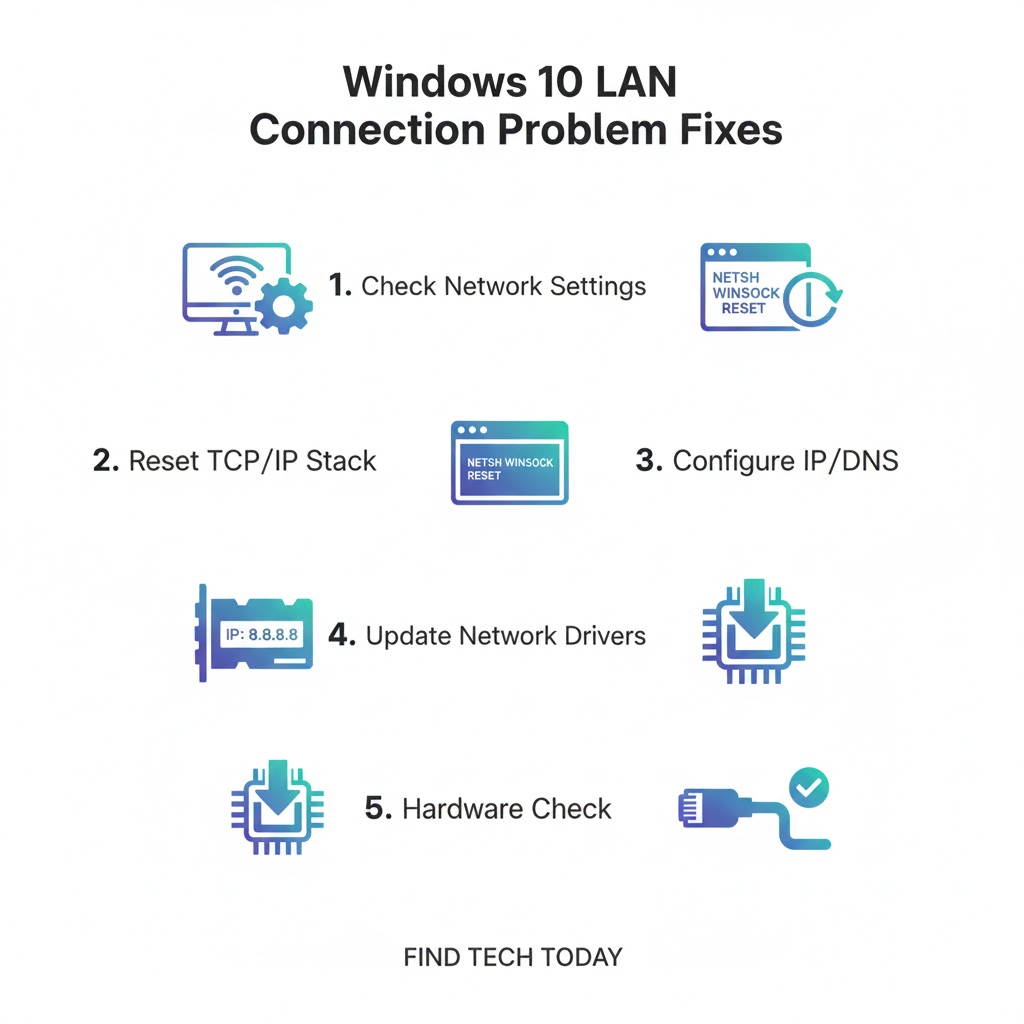
Reset TCP/IP Stack
-
Open Command Prompt as administrator.
-
Run the following commands one by one:
-
Restart your computer. This process resets network settings and often fixes configuration conflicts.
Check IP and DNS Settings
-
Go to Network & Internet > Ethernet > Change adapter options.
-
Right-click your Ethernet adapter, select Properties, then double-click Internet Protocol Version 4 (TCP/IPv4).
-
Ensure Obtain an IP address automatically and Obtain DNS server address automatically are selected.
Disable Firewall and Antivirus Temporarily
Sometimes, third-party software blocks Ethernet connectivity. Temporarily disable firewalls or antivirus programs and check the connection. Remember to enable them afterward for security.
Wired Internet Not Working Windows 10: Additional Tips
Use Network Troubleshooter
Windows 10 includes a built-in troubleshooter that can diagnose and fix common problems:
-
Go to Settings > Update & Security > Troubleshoot > Additional troubleshooters.
-
Select Internet Connections and follow the on-screen instructions.
Roll Back Recent Updates
Some updates may introduce Ethernet adapter issues. To roll back:
-
Go to Settings > Update & Security > Windows Update > View update history > Uninstall updates.
-
Remove recent updates and restart your system.
Configure Router Settings
-
Restart your router to refresh the connection.
-
Ensure DHCP is enabled for automatic IP assignment.
-
Update the router firmware to the latest version for compatibility.
Ethernet Adapter Issue Windows 10 Solution: Expert Insights
Network experts recommend a proactive approach:
-
Keep drivers and Windows OS updated regularly.
-
Avoid using cheap or damaged Ethernet cables.
-
Document IP configurations to restore settings if needed.
-
Test Ethernet ports periodically for physical wear.
Real-world cases show that over 60% of Ethernet issues in offices are due to outdated drivers. Professionals often use automated driver update tools to prevent repeated problems.
Windows 10 LAN Connection Problem Fix: Case Study
A small business in Chicago faced a recurring Ethernet problem. Multiple PCs were losing LAN connectivity daily.
Problem:
-
IP conflicts due to multiple static addresses.
-
Outdated Ethernet drivers on half the devices.
Solution:
-
Enabled DHCP on all devices.
-
Updated drivers via Device Manager.
-
Replaced faulty cables and switched some PCs to different ports.
Result:
LAN connectivity stabilized completely, and productivity improved. This case emphasizes combining hardware checks, driver updates, and network configuration fixes for effective resolution.
Best Practices to Avoid Ethernet Issues
-
Regular updates: Always install driver and Windows updates promptly.
-
Backup configurations: Keep a copy of network settings.
-
Quality hardware: Invest in durable cables and routers.
-
Network monitoring: Use tools to monitor LAN stability and detect issues early.
Related Troubleshooting Articles
For more network and system fixes, check out:
-
How to fix Printer Driver is Unavailable Error if peripheral connections fail.
-
Resolving Windows 11 WiFi not Showing Networks for wireless connection problems.
-
Fixing Windows 11 Sound Driver Not Working issues impacting multimedia setups.
-
Browse other tips at Find Tech Today for comprehensive tech solutions.
FAQs About Ethernet Not Working in Windows 10
Q1: Why does my Ethernet say “Unidentified Network”?
A: This often occurs due to incorrect IP configuration, driver issues, or disabled adapter. Resetting TCP/IP and updating drivers usually resolves the issue.
Q2: Can a virus cause Ethernet connection failure?
A: Yes. Malware may block network adapters or modify system settings. Running a full antivirus scan and restoring adapter settings can help.
Q3: How can I test if my Ethernet cable is faulty?
A: Connect the cable to another PC or router port. If the connection fails on multiple devices, the cable may need replacement.
Conclusion
Ethernet not Working in Windows 10 is a common but solvable problem. Most issues stem from driver conflicts, hardware faults, or incorrect network configurations. By following the step-by-step solutions outlined above, users can restore wired internet quickly and efficiently. Regular maintenance, using quality hardware, and monitoring network settings prevent recurring issues.
For comprehensive guides on related system errors, explore Find Tech Today, where experts share practical solutions for Windows, hardware, and connectivity issues. Reliable LAN connectivity ensures smooth productivity, gaming, and streaming experiences without interruptions.