Forgot Microsoft Account Password Reset
Forgot Microsoft Account Password Reset: Complete Guide to Recover Your Microsoft Account
Forgetting your Microsoft account password can be stressful, especially when it blocks access to essential services like Outlook, OneDrive, or Windows 11 features. The Forgot Microsoft Account Password Reset process is straightforward when you follow the right steps. This comprehensive guide will walk you through proven methods to recover your account, provide practical examples, and share expert insights to help you regain access quickly.
A Microsoft account is more than just an email. It connects your devices, stores files in the cloud, and secures your personal data. Losing access can disrupt productivity, but with the right steps, you can recover your password safely.

Understanding Microsoft Account Password Issues
Many users encounter issues due to forgotten passwords, expired credentials, or security alerts. Common scenarios include:
-
Forgotten passwords after long inactivity
-
Suspicious activity triggering Microsoft security locks
-
Multi-factor authentication failure
According to Microsoft’s security report, over 30% of account recovery requests involve forgotten passwords. Understanding these scenarios helps in choosing the right recovery method.
Reset Microsoft Account Password Step-by-Step
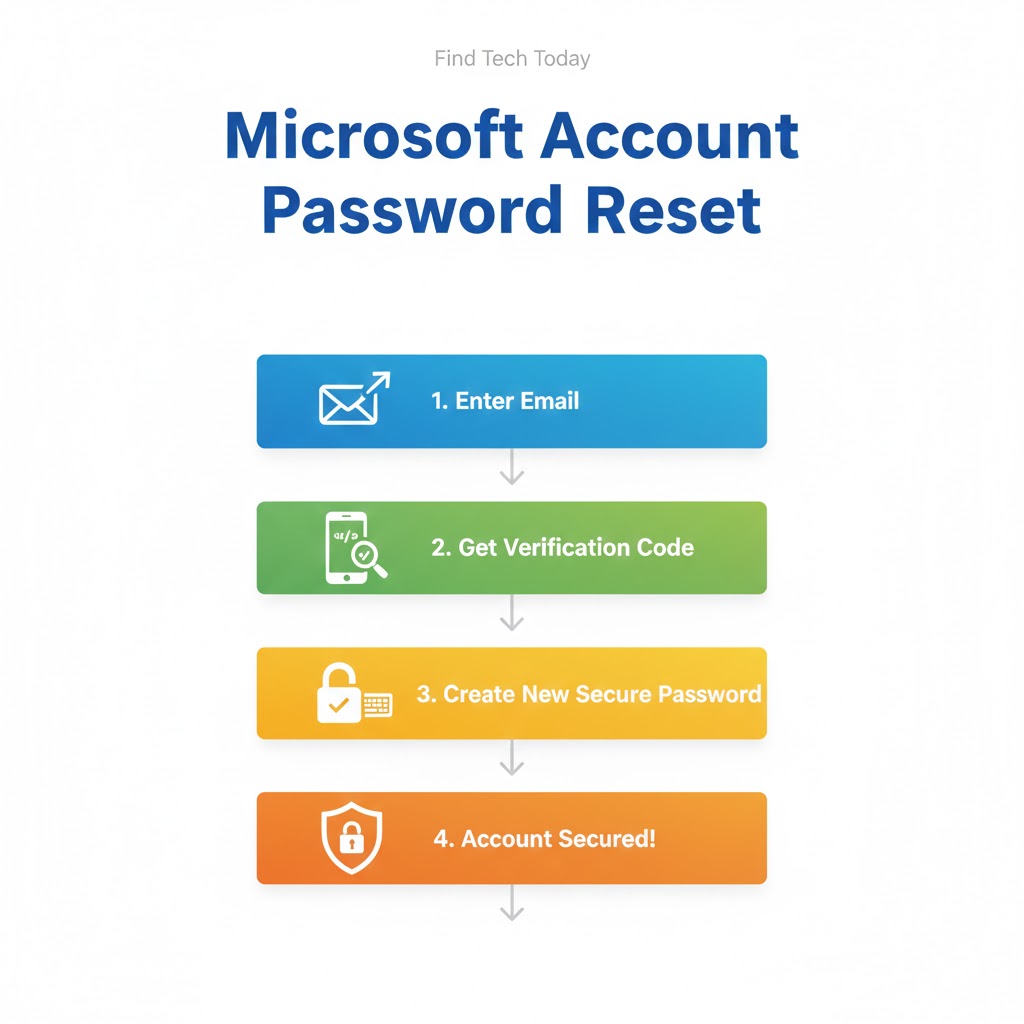
Resetting your Microsoft account password is designed to be secure and user-friendly. Follow these steps carefully:
-
Visit the Microsoft account password reset page.
-
Select “I forgot my password” and click Next.
-
Enter the email address or phone number associated with your Microsoft account.
-
Complete the captcha to prove you’re not a robot.
-
Choose a verification method: email, SMS, or authenticator app.
-
Enter the security code sent to your selected method.
-
Create a new password that is strong and unique, combining letters, numbers, and symbols.
Practical tip: Use a password manager to avoid forgetting your new password. It also adds an extra layer of security for future logins.
Recover Forgotten Microsoft Password Using Alternative Methods
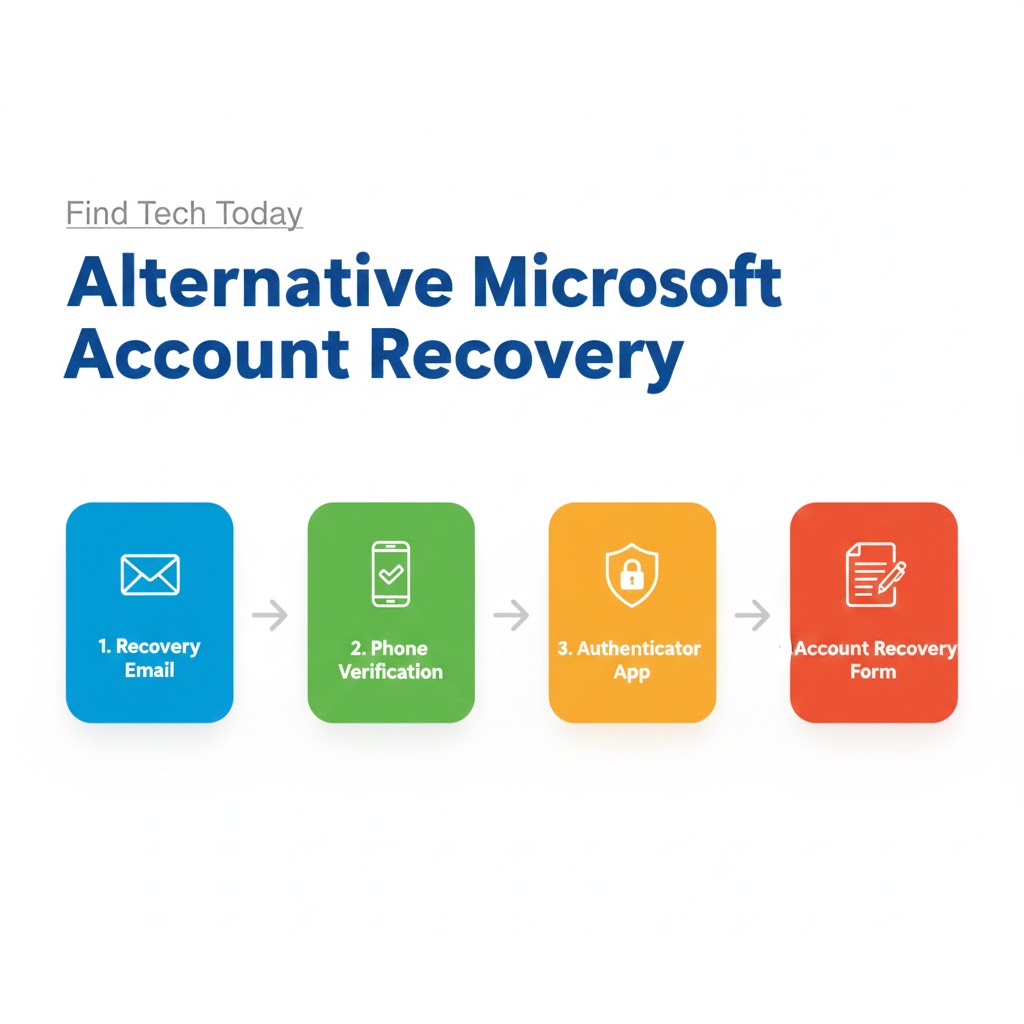
If standard reset options are unavailable, alternative recovery methods can help:
-
Recovery Email or Phone: Microsoft sends a verification code to your backup email or phone number.
-
Authenticator App: For users with the Microsoft Authenticator app, verify identity through the app.
-
Account Recovery Form: If all else fails, fill out the Microsoft Account Recovery Form providing detailed information about account usage.
Case Study: One user successfully recovered their account using the recovery form after losing access to their email and phone. They provided details about previous emails sent, contacts, and Xbox purchases, which allowed Microsoft to verify their identity.
Common Errors During Microsoft Password Reset
While resetting your Microsoft account password, you may encounter errors such as:
-
“This account doesn’t exist”: Often due to typing errors in your email or using an alias incorrectly.
-
Verification code not received: Can occur if the backup email/phone is outdated.
-
Account temporarily locked: Happens after multiple failed attempts.
Expert Advice: Wait 24 hours and retry, or use the Microsoft support page for assistance.
Best Practices for Microsoft Account Password Recovery
Maintaining a secure and accessible Microsoft account is crucial. Experts recommend:
-
Enable two-factor authentication for added security.
-
Regularly update your recovery email and phone number.
-
Avoid using the same password across multiple platforms.
-
Keep a backup of essential files in OneDrive or external drives.
Security Measures After Password Reset
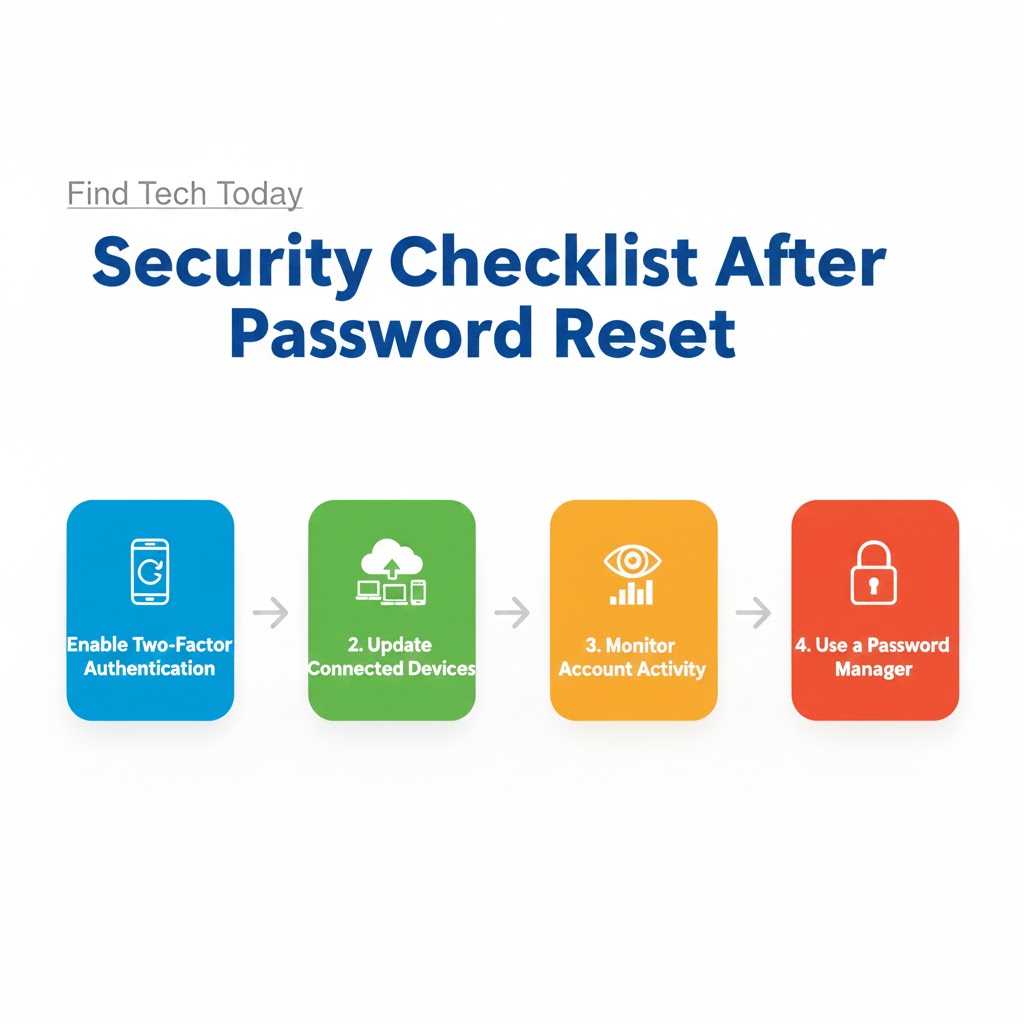
After successfully resetting your Microsoft account password, follow these security steps:
-
Sign in to all connected devices and update the password.
-
Review recent activity on your Microsoft account for unauthorized logins.
-
Update passwords for other services that use the same credentials.
-
Enable security alerts to monitor account activity.
Practical Example: A professional reported unauthorized access attempts on their Outlook account. Resetting the password, updating recovery methods, and enabling two-factor authentication prevented further breaches.
Tools and Resources for Microsoft Account Management
Using tools can make managing your Microsoft account easier:
-
Microsoft Authenticator app
-
Password managers like LastPass or 1Password
-
Security dashboard in your Microsoft account settings
For more Windows troubleshooting and optimization tips, you can visit Find Tech Today’s Windows 11 High Disk Usage guide or check out Memory Leak Windows 11 Fix for system stability tips.
FAQs About Microsoft Account Password Recovery
Q1: How long does it take to reset a Microsoft account password?
It typically takes a few minutes if you have access to recovery methods. In complex cases, account recovery can take 24–48 hours.
Q2: Can I recover a Microsoft account without a recovery email or phone?
Yes, by filling out the Microsoft Account Recovery Form with detailed information about account usage. This is a secure way to prove ownership.
Q3: How to avoid forgetting my Microsoft account password again?
Use a password manager, set up two-factor authentication, and keep recovery methods updated. Regularly updating your password also helps maintain account security.
Conclusion
The Forgot Microsoft Account Password Reset process is designed to be secure, accessible, and user-friendly. By following the steps outlined in this guide, using alternative recovery methods, and applying expert-recommended security practices, you can regain access quickly and prevent future issues.
Remember, protecting your Microsoft account goes beyond just resetting the password. Regularly updating recovery information, enabling two-factor authentication, and monitoring account activity ensure your data remains secure. For ongoing support and tech guides, visit Find Tech Today for expert insights and practical solutions.