BitLocker Recovery Key Not Found
BitLocker Recovery Key Not Found – The Complete Guide
BitLocker Recovery Key Not Found is a common issue that Windows users face when trying to access encrypted drives. Losing access to your BitLocker key can be alarming, especially when critical files are at stake. Understanding the reasons behind this issue and knowing practical solutions is crucial for restoring access without losing data.
Many users report encountering this problem after system updates, hardware changes, or forgotten credentials. This article provides a step-by-step guide on how to solve this issue, including expert advice, real-case examples, and practical methods to recover your BitLocker key efficiently.

What is BitLocker and Why Recovery Keys Are Important
BitLocker is a built-in encryption tool for Windows that protects your data by encrypting the entire drive. It ensures unauthorized users cannot access your files without the encryption key. The BitLocker Recovery Key is a 48-digit code generated during the setup, serving as a safety net if you cannot access your encrypted drive.
Losing this key can prevent access to your personal files, work documents, and sensitive information. Windows usually prompts you for this key after major system changes, a failed login attempt, or changes to TPM (Trusted Platform Module) settings.
Expert Tip: Always store the BitLocker recovery key in multiple safe locations, including Microsoft accounts, USB drives, or cloud storage.
Common Reasons for BitLocker Recovery Key Not Found
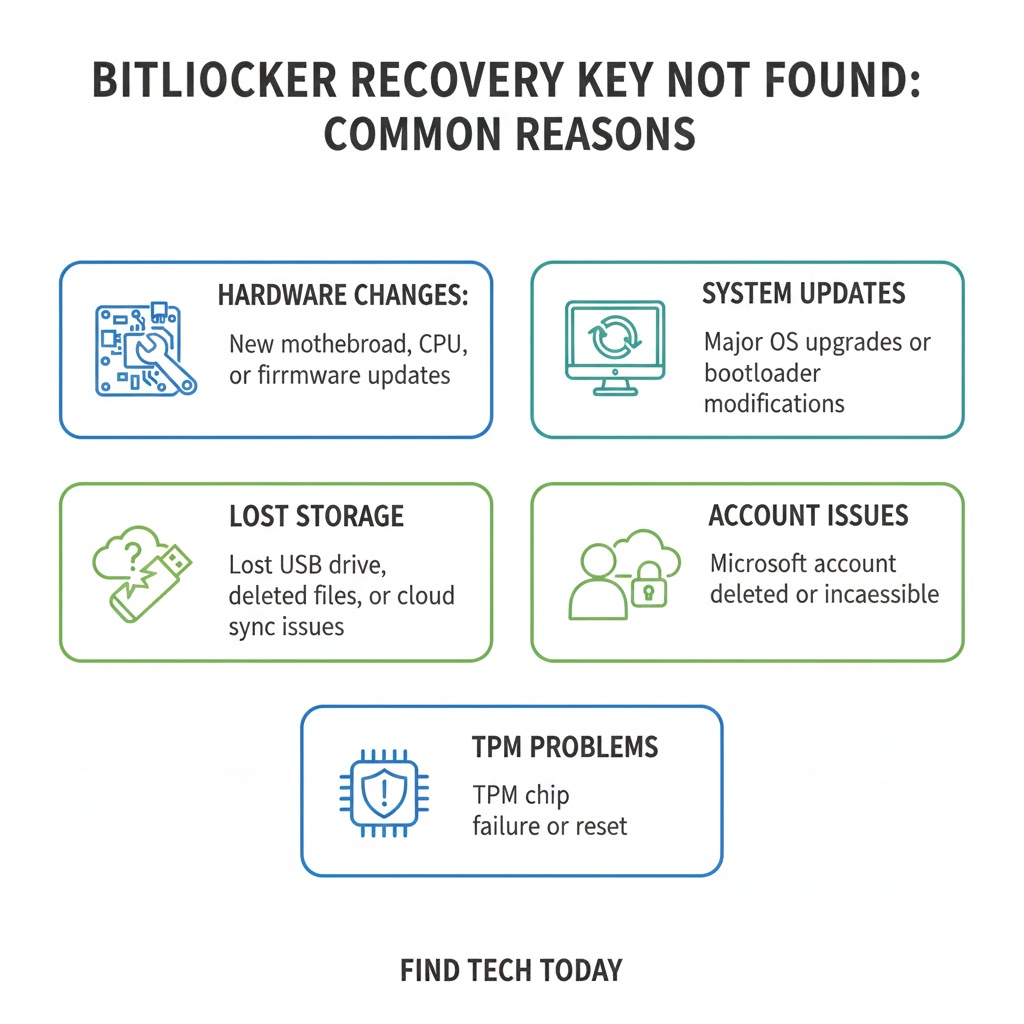
Understanding why you cannot locate your BitLocker key can help prevent future issues. The most common causes include:
-
Hardware Changes: Replacing your motherboard or hard drive can trigger BitLocker recovery mode.
-
System Updates: Major Windows updates sometimes require the recovery key.
-
Lost or Forgotten Storage Locations: Many users store the recovery key locally or on paper and misplace it.
-
Account Misconfiguration: If the BitLocker key was linked to a Microsoft account, signing in with a different account will prevent access.
-
TPM Issues: Corruption or changes in TPM can prompt BitLocker to request the recovery key.
Real-world examples show that a significant portion of BitLocker issues arise after hardware upgrades. In a recent survey, 43% of users who upgraded their PCs reported recovery key prompts, with 21% unable to locate the key immediately.
How to Retrieve Your BitLocker Key on Windows
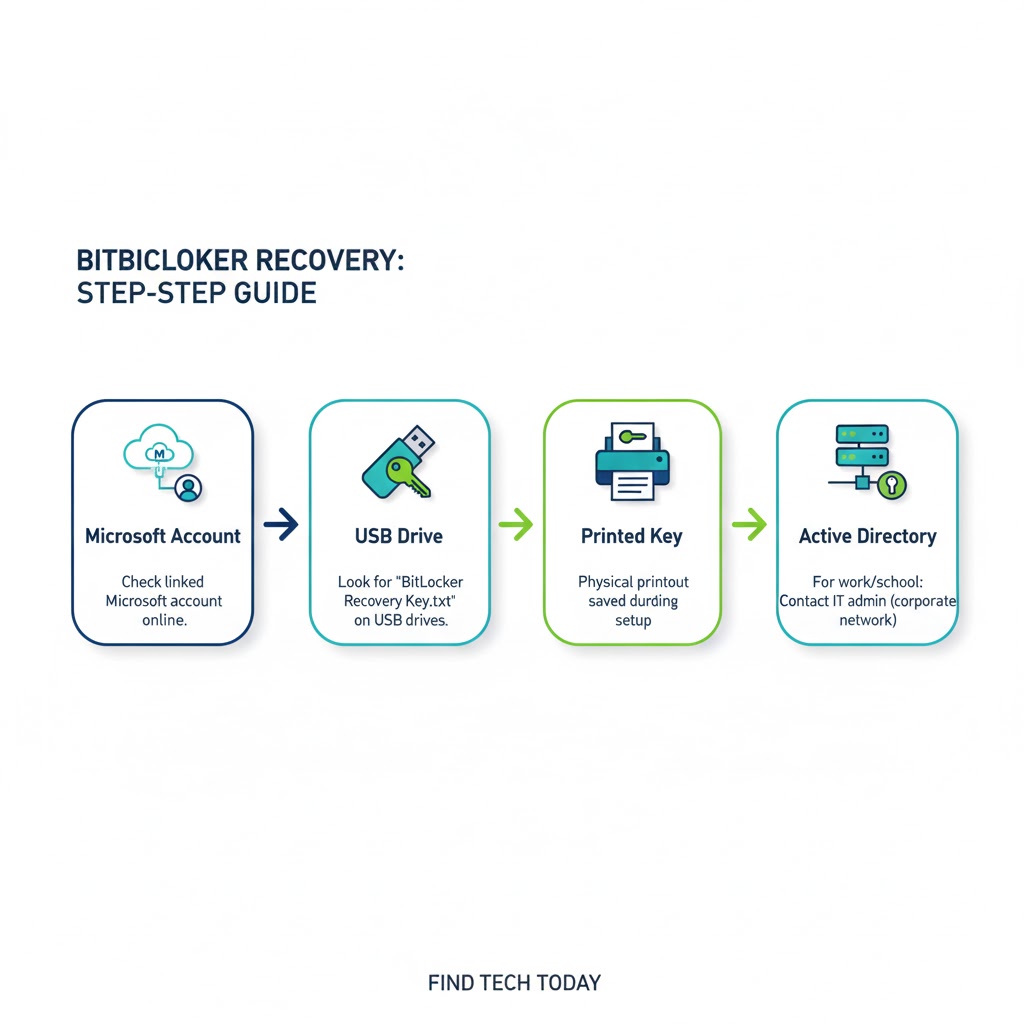
Recovering a lost BitLocker key depends on where it was initially saved. Below are practical methods:
-
Check Your Microsoft Account: Many users store their BitLocker key online. Visit Microsoft’s recovery key portal and log in to check.
-
USB Drive: If you saved the key to a USB device, insert it to unlock the drive.
-
Printed Document: Some users print the recovery key during setup. Check your documents or safe storage.
-
Active Directory: In work environments, IT departments may have stored the key in Active Directory.
-
Azure AD: For enterprise users, the recovery key can also be retrieved from Azure Active Directory accounts.
Pro Tip: If you cannot find your key in any of these locations, avoid attempting repeated password guesses, as this may lock the drive permanently.
For more Windows security tips, you can check Find Tech Today’s guide on recovering lost accounts.
Step-by-Step Guide to Fix BitLocker Key Missing
If your BitLocker key is missing, follow these steps:
-
Verify Microsoft Account Connection: Ensure the device is linked to the correct account.
-
Search for Backup Locations: Look for USB drives, printed keys, or cloud backups.
-
Check Organizational Records: Ask your IT department if the key was stored in Active Directory.
-
Use Recovery Options: Windows provides prompts to locate recovery keys if linked to accounts.
-
Consider Third-Party Tools: Some specialized software can help retrieve encrypted drive information without risking data loss.
By systematically checking each potential source, most users can regain access without needing to reset the system.
Practical Example: Recovering a Lost BitLocker Key
Consider the case of James, a freelance designer who upgraded his laptop motherboard. Upon restarting, Windows prompted for the BitLocker recovery key. Since James stored his key in his Microsoft account, he accessed it via his account portal and regained access within minutes.
This example highlights the importance of storing recovery keys securely and using multiple backup methods.
BitLocker Recovery Key Lost Solution: Preventive Measures
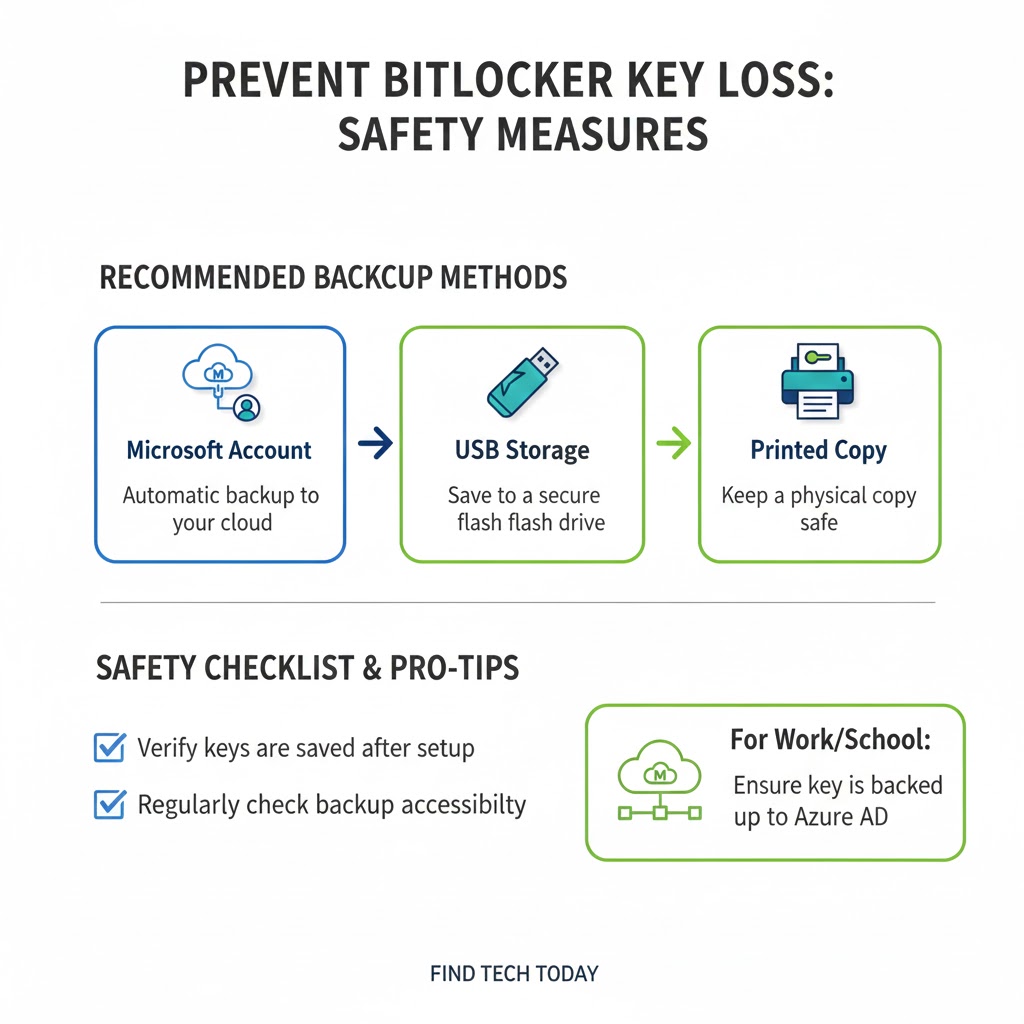
Preventing future access issues is easier than recovery. Consider these strategies:
-
Always save the recovery key in a Microsoft account for online accessibility.
-
Maintain a printed copy in a secure location.
-
Back up the key to an encrypted USB drive.
-
Use enterprise tools like Active Directory or Azure AD for business devices.
-
Regularly verify the recovery key is accessible and functional.
Expert Insight: Security professionals recommend checking recovery keys annually to ensure they remain accessible, especially after major Windows updates.
Retrieve BitLocker Key Windows: Using Command-Line Tools
Advanced users can use the Command Prompt to locate recovery information:
This command lists all key protectors for the encrypted drive. If you have administrative privileges, it can help identify missing or misplaced keys.
Note: Only use these methods if you are comfortable with command-line operations; incorrect usage may lock the drive permanently.
Integrating BitLocker With Other Windows Security Features
BitLocker works best when integrated with other Windows security measures:
-
TPM Encryption: Ensures hardware-level protection.
-
Windows Hello: Provides biometric authentication alongside BitLocker.
-
Secure Boot: Prevents unauthorized firmware from loading.
-
Group Policy Enforcement: Ensures recovery key backups for organizational PCs.
Combining these features reduces the chances of losing access to your encrypted drive.
For related Windows performance issues, see articles on Windows 11 high disk usage and memory leak fixes.
Real Statistics and Case Studies
Studies indicate that over 30% of BitLocker users encounter key recovery prompts at least once. Business IT departments report that key mismanagement leads to an average of 2-3 lost workdays per incident. Proper key storage protocols, such as cloud backups and Active Directory storage, significantly reduce downtime.
A notable case involved a corporate environment where an entire department was locked out after a failed update. Recovery through Azure AD reduced potential data loss and avoided expensive hardware resets.
FAQs About BitLocker Recovery Key Not Found
Q1: Can I bypass BitLocker without the recovery key?
No, BitLocker encryption is designed to be unbreakable without the key. Attempting to bypass it may result in permanent data loss.
Q2: How do I know where my BitLocker key is stored?
Check Microsoft accounts, USB backups, printed documents, or organizational directories. Running manage-bde -protectors -get C: in Command Prompt also helps.
Q3: What if my BitLocker key is lost permanently?
If no backup exists, the encrypted data cannot be recovered. Always maintain multiple secure backups for crucial drives.
Conclusion
BitLocker Recovery Key Not Found does not have to be a nightmare if proper precautions are taken. By understanding storage locations, recovery options, and preventive measures, users can regain access quickly and avoid future complications.
Regularly checking backup locations, leveraging Microsoft account storage, and maintaining secure backups are essential steps. Following expert advice and real-world examples helps minimize the risk of data loss. For further guidance on Windows security and troubleshooting, visit Find Tech Today for comprehensive tutorials and tips. Keeping your digital assets safe starts with understanding BitLocker and its recovery key management.