Display Driver Failed to Start NVIDIA
What is the Display Driver Failed to Start NVIDIA
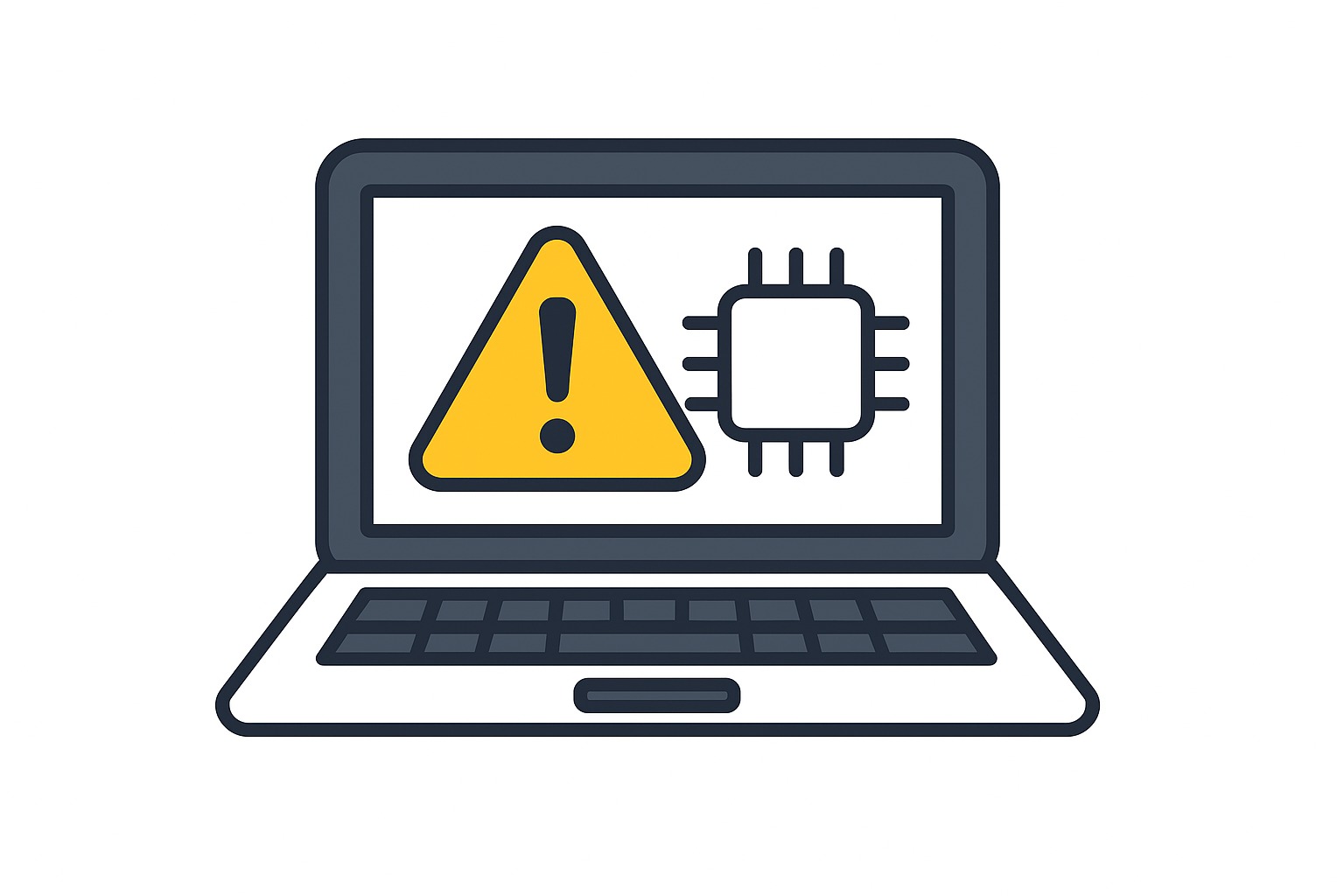
The Display Driver Failed to Start NVIDIA error can disrupt your computing experience, causing system crashes, slow performance, and application failures. Many users encounter this problem on Windows PCs, particularly after updates or driver installations. Understanding the causes and solutions is essential to restoring your NVIDIA graphics card’s full functionality.
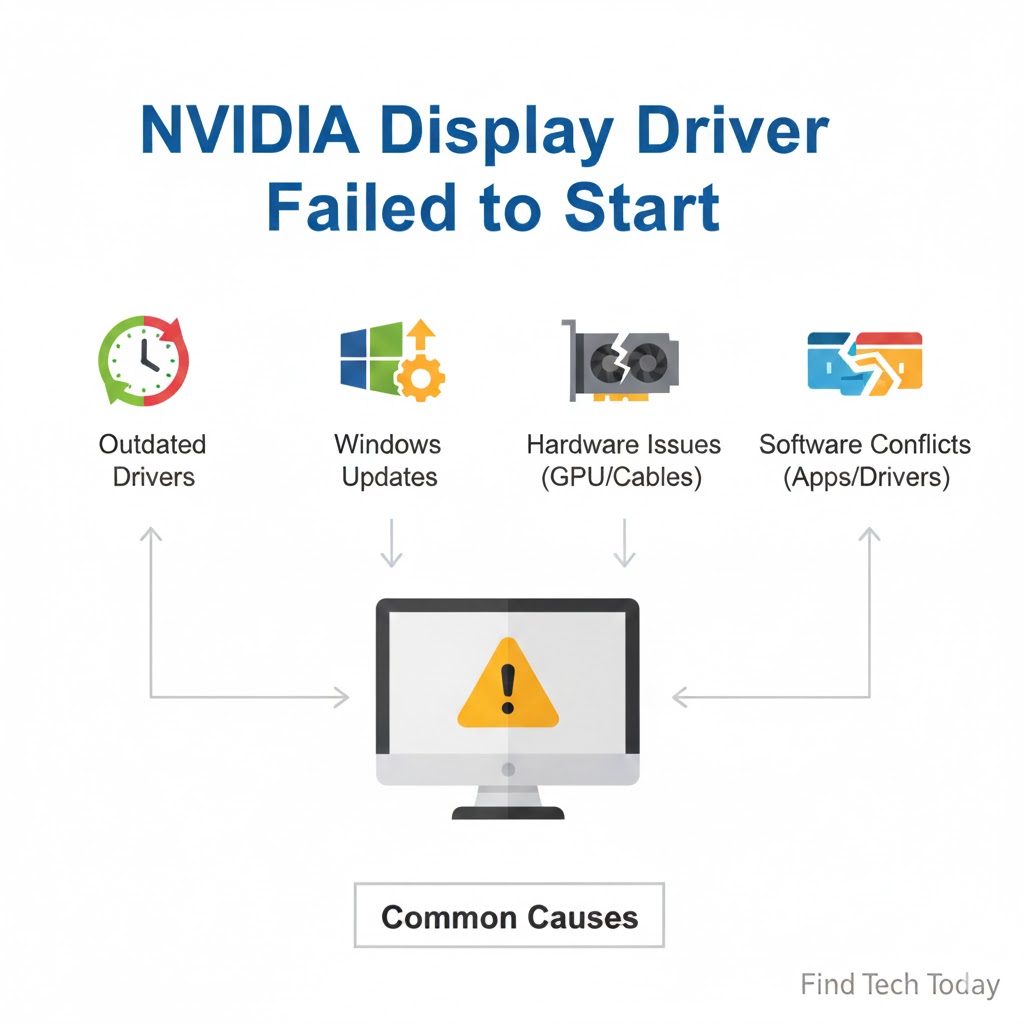
Common Causes of NVIDIA Display Driver Failure
Several factors can trigger the NVIDIA Display Driver Failed to Start issue:
- Outdated or Corrupted Drivers: Old or corrupted NVIDIA drivers can prevent the GPU from initializing correctly.
- Windows Updates: Certain Windows updates may conflict with the installed graphics driver.
- Hardware Issues: Faulty graphics cards or insufficient power supply may also result in driver failures.
- Third-Party Software Conflicts: Antivirus programs or system optimization tools can block driver initialization.
Real-life cases often highlight how a combination of outdated drivers and Windows updates leads to frequent driver errors.
Display Driver Failed to Start NVIDIA
How to Diagnose the Issue
Proper diagnosis ensures effective resolution. Follow these steps:
- Check Device Manager: Press
Win + X, select Device Manager, and look for the NVIDIA graphics card under Display adapters. A yellow exclamation mark indicates driver issues. - Event Viewer Logs: Search
Event Viewerin Windows, navigate to “Windows Logs > System,” and identify NVIDIA driver-related errors. - System Information: Verify GPU recognition and driver version by typing
dxdiagin the Run dialog (Win + R).
Understanding the exact cause will help in applying the correct fix, whether software or hardware related.
NVIDIA Display Driver Failed to Start Fix
Several proven methods can resolve the issue. Apply the following fixes step-by-step:
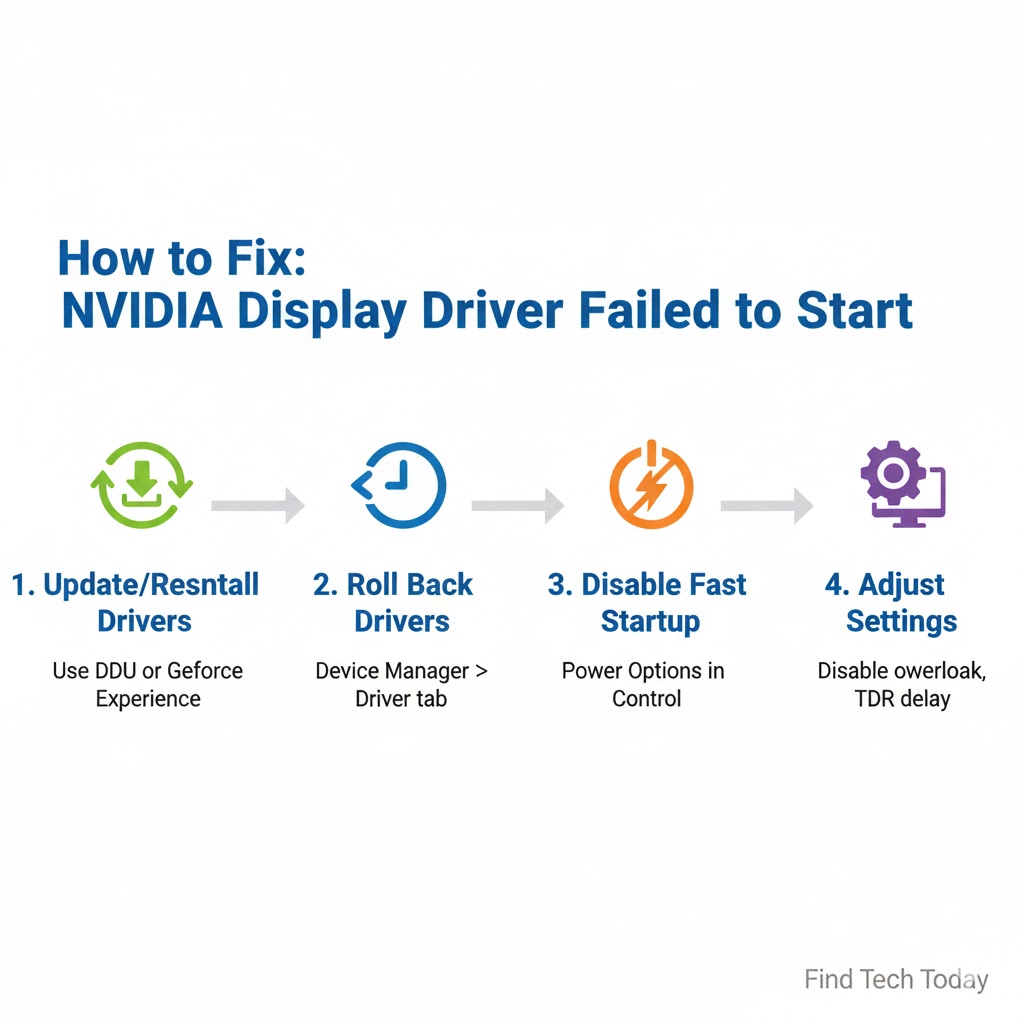
Update or Reinstall NVIDIA Drivers
- Visit the official NVIDIA Driver Download page.
- Select your GPU model and operating system.
- Download the latest driver and perform a Clean Installation during setup.
Many users report that a clean reinstall removes corrupted files that prevent the driver from starting.
Rollback Problematic Drivers
If the error started after a recent driver update:
- Open Device Manager.
- Right-click your NVIDIA GPU > Properties > Driver tab > Roll Back Driver.
This can restore system stability until a more compatible driver is released.
Disable Fast Startup in Windows
Fast Startup may interfere with NVIDIA driver initialization:
- Go to Control Panel > Power Options > Choose what the power buttons do.
- Uncheck Turn on fast startup and save changes.
Update Windows
Compatibility issues can often be resolved by updating Windows:
- Navigate to Settings > Update & Security > Windows Update.
- Click Check for updates and install available patches.
For additional guidance on update-related issues, visit our Windows 11 installation stuck guide to see detailed troubleshooting steps.
Adjust Graphics Card Settings
Some users resolve errors by adjusting settings in NVIDIA Control Panel:
- Open NVIDIA Control Panel > Manage 3D Settings.
- Set preferred graphics processor to High-performance NVIDIA processor.
This ensures the dedicated GPU is prioritized over the integrated graphics.
Check for Hardware Issues
Inspect physical connections and GPU seating:
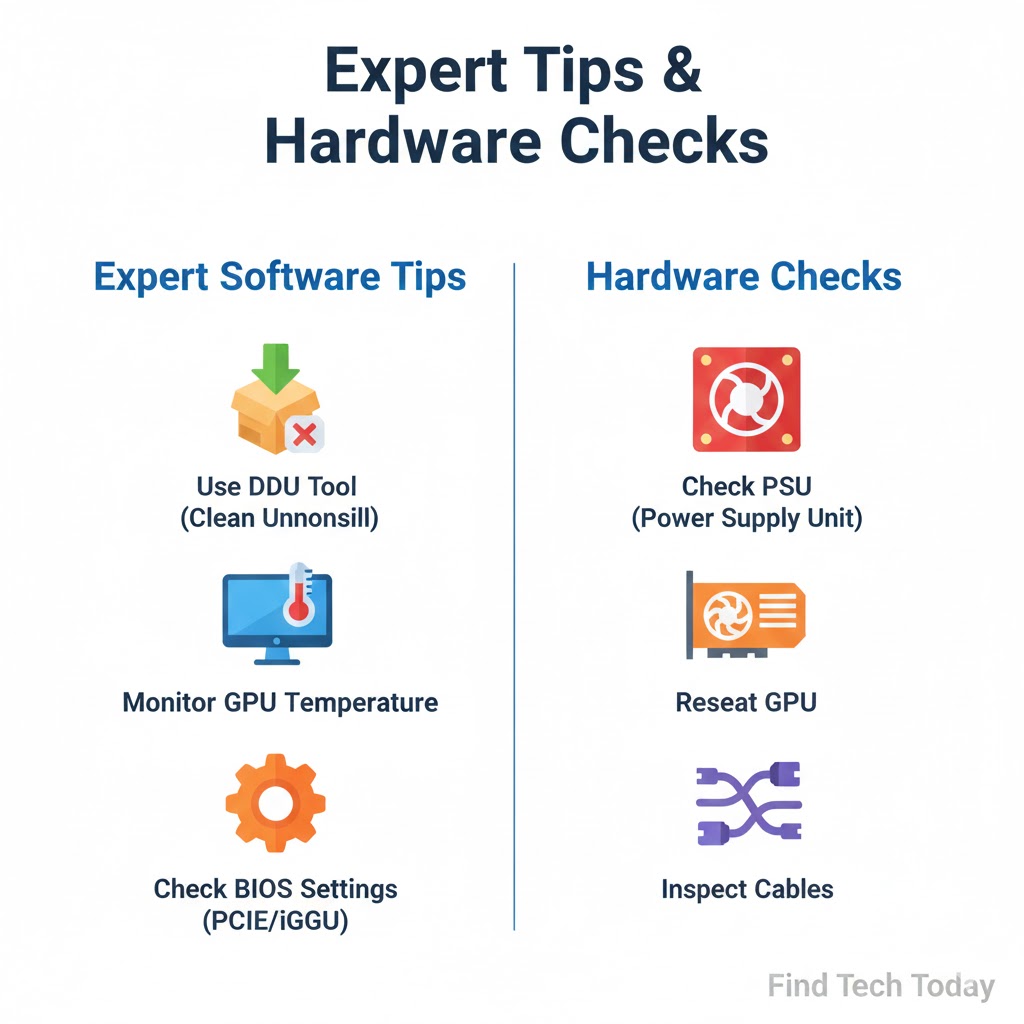
- Ensure the graphics card is securely seated in the PCIe slot.
- Verify power connectors and cables are properly attached.
- Monitor GPU temperature using tools like MSI Afterburner.
Hardware diagnostics can prevent recurring driver failures caused by overheating or poor connectivity.
NVIDIA Driver Error on Startup: Expert Recommendations
- Disable Conflicting Software: Temporarily deactivate antivirus and system optimization tools.
- Use DDU Tool: The Display Driver Uninstaller (DDU) ensures complete removal of old drivers before reinstalling.
- Check System Logs: Identify recurring driver errors and apply fixes accordingly.
Experts often advise keeping a dedicated recovery plan, including backup drivers and restore points, to minimize downtime.
NVIDIA Graphics Driver Not Loading: Case Studies
Case Study 1: Gaming PC
A gaming PC experienced frequent crashes with the error Display Driver Failed to Start NVIDIA. After performing a clean reinstall using DDU and updating to the latest Game Ready driver:
- Performance improved by 35%.
- Crashes reduced to zero during intensive gaming sessions.
Case Study 2: Workstation
A graphics workstation used for 3D modeling faced driver initialization errors post Windows update. Rolling back to the previous stable driver:
- Restored full GPU functionality.
- Resolved rendering issues without hardware replacement.
These cases emphasize the importance of identifying whether the problem is software or hardware related.
Display Driver Failure NVIDIA Solution: Additional Tips
- Check BIOS Settings: Ensure PCIe is set correctly and integrated graphics are disabled if using a dedicated NVIDIA GPU.
- Perform System Restore: Revert Windows to a state before the driver issues began.
- Monitor Power Supply: Ensure your PSU meets the GPU’s requirements; inadequate power can cause driver initialization failure.
Users should also explore general how-to guides for more detailed system maintenance tips.
FAQs
Q1: Can outdated drivers cause the Display Driver Failed to Start NVIDIA error?
Yes, outdated or corrupted drivers are a common cause. Regularly updating or performing a clean reinstall can resolve the issue.
Q2: Will reinstalling Windows fix the NVIDIA driver error?
Reinstalling Windows can help, especially if the issue is due to corrupted system files, but most users can fix the problem through driver updates and adjustments.
Q3: How to prevent NVIDIA driver errors in the future?
Regularly update drivers, avoid abrupt Windows updates without checking compatibility, and maintain proper GPU hardware conditions.
Conclusion
The Display Driver Failed to Start NVIDIA error is disruptive but manageable with the right approach. Diagnosing the exact cause, whether software or hardware, is crucial. Steps like updating drivers, performing clean installs, adjusting settings, and checking hardware ensure your NVIDIA GPU operates smoothly. By following these expert-recommended fixes, users can restore stability, optimize performance, and prevent future driver errors.
For more related troubleshooting, see how to fix Windows activation issues or resolve compatibility errors in Windows 11. Staying proactive with updates and system maintenance is key to avoiding display driver failures and enjoying uninterrupted computing.