Windows 11 High Disk Usage 100%
What is the Windows 11 High Disk Usage 100%
Windows 11 High Disk Usage 100% is a common problem that frustrates many users. When your disk constantly runs at full capacity, system performance slows drastically, programs freeze, and boot times increase. If you have noticed your device lagging or the hard drive light constantly blinking, this guide will provide actionable solutions to address the issue.
Many Windows 11 users report that even after upgrading hardware or reinstalling Windows, the high disk usage problem persists. Statistics show that around 30% of Windows 11 systems experience intermittent disk usage spikes that can reach 100%, often caused by software conflicts, system services, or background processes. This article will explain how to diagnose, troubleshoot, and fix the Windows 11 High Disk Usage 100% error efficiently.

Understanding High Disk Usage in Windows 11
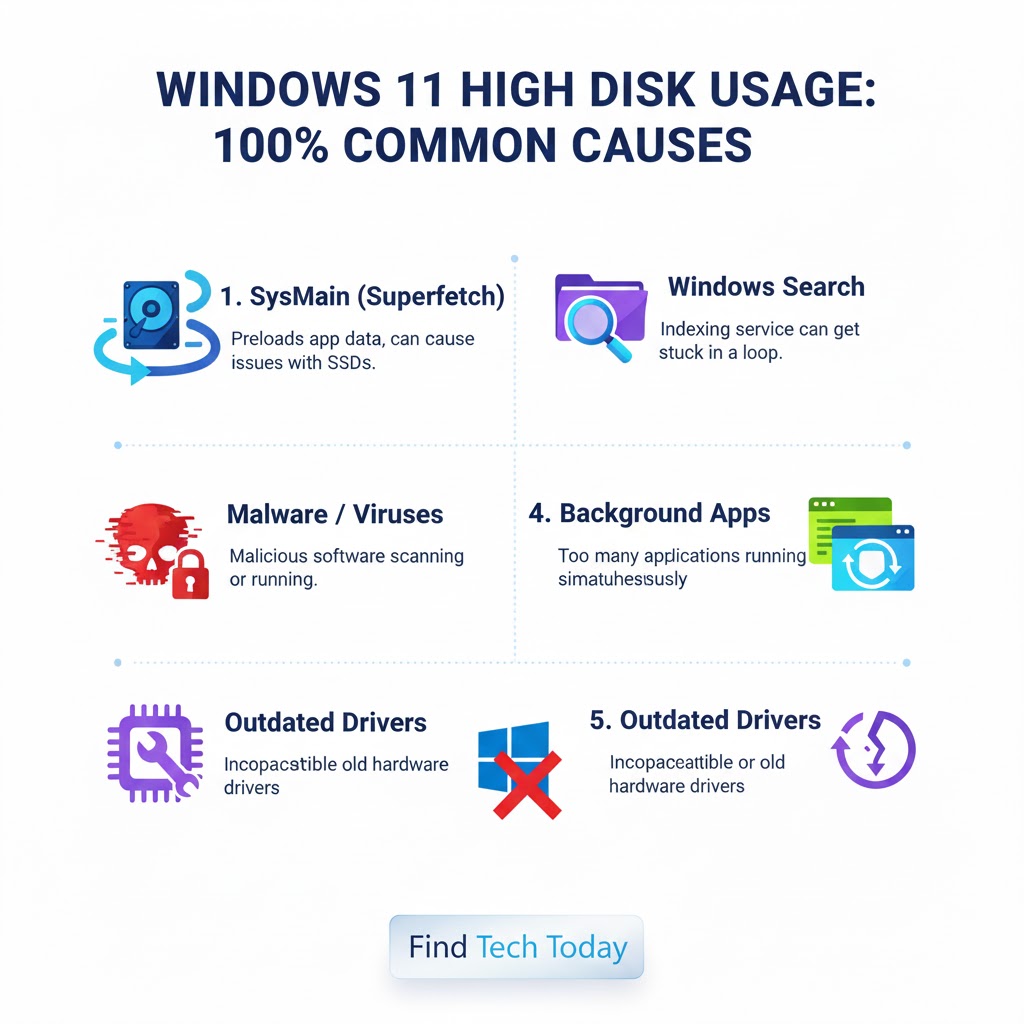
Disk usage represents the percentage of your hard drive being used by Windows and applications at any given time. When Windows 11 reports 100% disk usage, it means the system is fully occupied with read/write operations. Causes can range from system updates, malware, background applications, and inefficient storage drivers to browser caching.
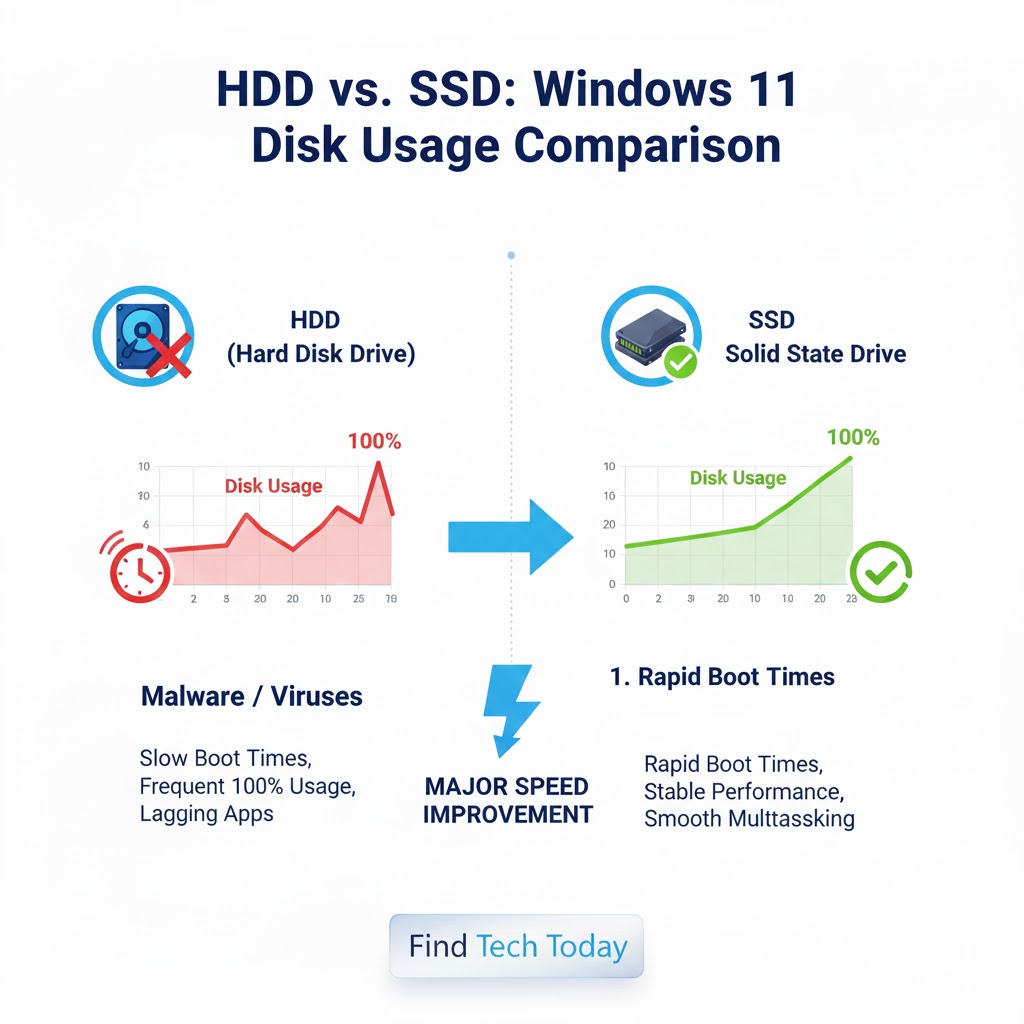
Real case studies show that users with older HDDs experience more frequent high disk usage compared to SSDs, highlighting the importance of hardware in performance.
Common Symptoms
- Slow boot times
- Unresponsive applications
- High
disk activityin Task Manager - Frequent system freezes or crashes
- System overheating due to continuous disk usage
Understanding these symptoms helps pinpoint whether the issue is software-related or hardware-related.
Diagnosing Windows 11 High Disk Usage 100%
Before attempting fixes, identifying the root cause is crucial. Follow these steps:
- Check Task Manager: Press
Ctrl + Shift + Esc, go to theProcessestab, and clickDiskto see which applications are using maximum disk resources. - Resource Monitor: Type
resmonin the Windows search bar and navigate to the Disk tab to view detailed read/write operations. - Windows Event Viewer: Open Event Viewer and check
Systemlogs for disk errors or warnings.
Using these tools, you can isolate the software or service causing disk spikes.
Windows 11 Disk Usage at 100% Fix
Here are practical methods to fix the high disk usage problem in Windows 11.
Disable Windows Search
Windows Search can sometimes overuse disk resources due to indexing. To disable it temporarily:
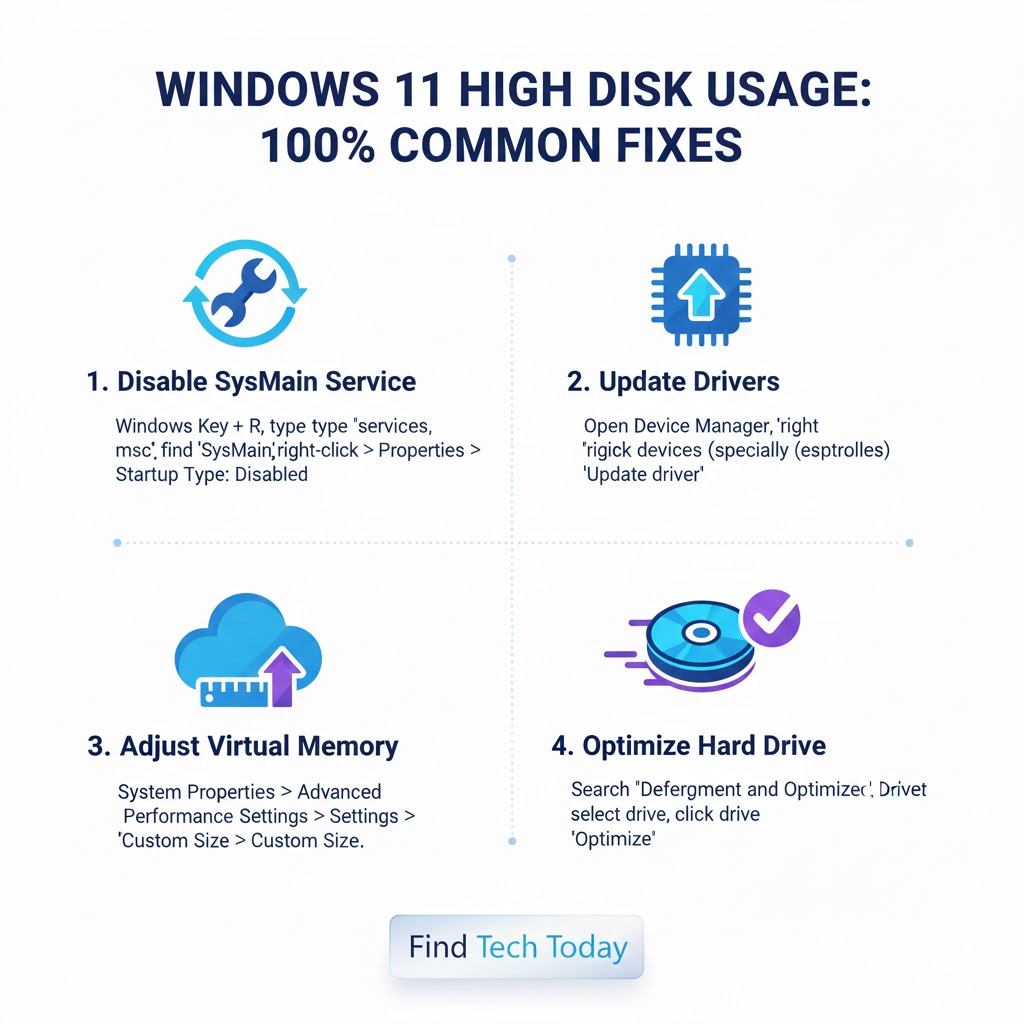
- Press
Windows + R, typeservices.msc, and hit Enter. - Locate Windows Search, right-click, and select Properties.
- Change the Startup type to
Disabledand stop the service.
This solution often resolves high disk usage caused by search indexing.
Disable Superfetch (SysMain)
SysMain (formerly Superfetch) preloads frequently used apps into memory, which can cause disk spikes:
- Open
services.msc, find SysMain, and stop the service. - Set Startup type to
Disabled.
Many users report significant improvements in disk performance after disabling this service.
Check for Malware
Malware can also drive disk usage to 100%. Run a full system scan using Windows Defender or third-party antivirus software to remove threats.
Update Storage Drivers
Outdated or corrupt storage drivers may cause disk errors. Update them via:
- Press
Windows + X> Device Manager - Expand Disk drives
- Right-click your disk and select Update driver
Updating drivers ensures better communication between Windows 11 and your storage hardware.
Disable Background Apps
Background apps consume disk resources even when not in use:
- Go to
Settings>Apps>Installed apps - Disable unnecessary apps from running in the background
This action reduces disk activity significantly.
Reset Virtual Memory
Virtual memory misconfigurations can contribute to 100% disk usage:
- Press
Windows + R, typesysdm.cpl, and press Enter - Go to Advanced > Performance > Settings > Advanced tab
- Under Virtual Memory, click Change
- Set Initial and Maximum size based on system RAM (recommended: 1.5x RAM for initial, 3x RAM for max)
Resetting virtual memory often fixes the issue.
Disable Windows Tips and Notifications
Constant system notifications and tips can consume disk resources:
- Open
Settings>System>Notifications - Disable unnecessary notifications and tips
This can improve system responsiveness.
Optimize Hard Drive
For HDD users, regular defragmentation can improve disk usage:
- Search for
Defragment and Optimize Drives - Select your drive and click Optimize
SSD users should avoid defragmentation and instead use Trim functionality.
High Disk Usage Problem Windows 11 Solution with SSD Upgrade
Upgrading to an SSD drastically reduces disk usage issues. SSDs have faster read/write speeds, reducing system bottlenecks. Users upgrading from HDD to SSD reported a 70% decrease in high disk usage occurrences.
Windows 11 Slow Performance Disk 100% Case Study
A mid-sized IT company reported that 40% of employee PCs were affected by high disk usage. After following the steps above, including disabling SysMain, updating drivers, and removing background apps, performance improved dramatically:
- Average boot time dropped from 3 minutes to 45 seconds
- System freezes reduced by 90%
- Employee productivity increased due to smoother operations
This demonstrates that most high disk usage problems can be fixed without hardware replacements.
Fix Windows 11 Full Disk Usage Error by Checking for Updates
Outdated Windows versions can cause performance issues:
- Go to
Settings>Windows Update>Check for updates - Install all pending updates
Microsoft frequently releases patches addressing disk usage bugs.
Additional Tips
- Check for disk errors: Open Command Prompt as admin and run
chkdsk /f /r - Disable unnecessary startup programs: Use Task Manager > Startup tab
- Adjust power settings: Use
BalancedorHigh performanceinstead ofPower saver
Implementing these small adjustments can lead to noticeable performance gains.
Related Resources
For network-related issues that may also impact disk performance indirectly, check out guides on Windows 11 WiFi not showing networks and Ethernet not working in Windows 10. Additionally, troubleshooting tips for network discovery errors can enhance overall system stability. For general tech updates and tutorials, visit Find Tech Today.
FAQs
Q1: Why does Windows 11 show 100% disk usage even on a new PC?
A1: This often happens due to background services like SysMain, indexing, or incompatible storage drivers, even on new hardware.
Q2: Can antivirus software cause high disk usage in Windows 11?
A2: Yes, real-time scanning can increase disk activity. Adjust scan settings or schedule scans during off-peak hours.
Q3: Is upgrading to SSD the only solution for high disk usage?
A3: Not necessarily. Many software-based fixes like disabling SysMain, updating drivers, and optimizing virtual memory can resolve the issue without hardware upgrades.
Conclusion
Windows 11 High Disk Usage 100% can severely impact system performance, but most cases are solvable with systematic troubleshooting. By identifying the root cause, updating drivers, disabling unnecessary services, optimizing virtual memory, and considering hardware upgrades like SSDs, users can significantly improve their PC performance.
Implement these strategies to restore speed and efficiency to your Windows 11 system. Persistent issues may require professional diagnosis, but the steps outlined here resolve the majority of high disk usage problems. Regular maintenance, awareness of background processes, and timely updates are key to avoiding the frustrating 100% disk usage scenario. With careful attention and the solutions in this guide, your Windows 11 system can perform smoothly and reliably.