Windows 11 Taskbar Not Working After Update
Windows 11 Taskbar Not Working After Update
Windows 11 Taskbar Not Working After Update has become a common issue affecting thousands of users worldwide. Many users report that after a Windows update, their taskbar becomes frozen, unresponsive, or the start menu stops working altogether. This can disrupt workflow and productivity, especially for users relying on Windows 11 for professional and personal tasks.
The taskbar is a critical part of the Windows interface. When it malfunctions, accessing applications, notifications, or settings becomes difficult. Understanding why the taskbar fails after updates can help users resolve issues quickly and avoid prolonged interruptions.
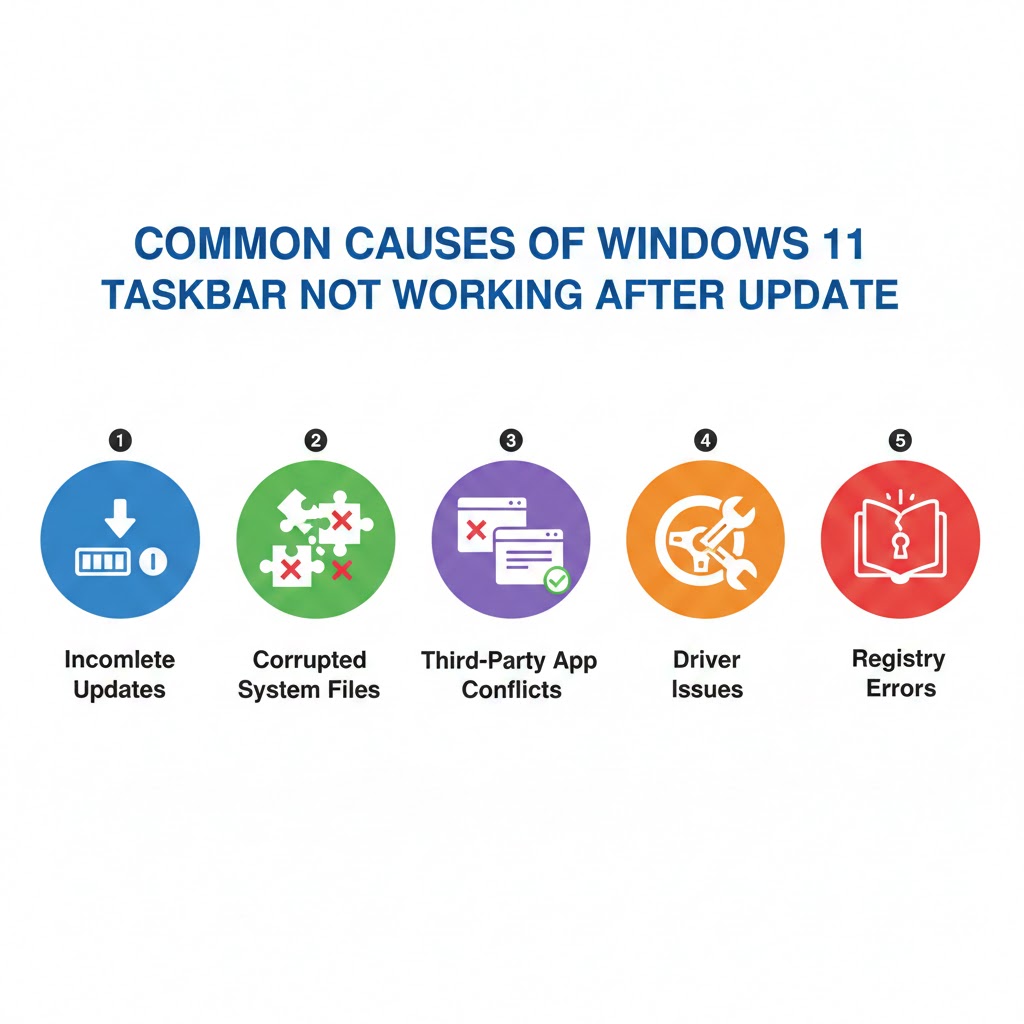
Common Causes of Windows 11 Taskbar Issues
Several factors can lead to Windows 11 Taskbar Not Working After Update. Recognizing the root cause is the first step toward fixing the problem.
- Incomplete or Corrupted Updates: Sometimes, Windows updates do not install correctly, leading to frozen taskbars or a non-responsive start menu.
- Corrupted System Files: System files essential for taskbar functionality may become corrupted during updates.
- Third-Party Application Conflicts: Certain apps, especially antivirus or system optimization tools, can interfere with taskbar operations.
- Driver Issues: Outdated or incompatible drivers, particularly graphics drivers, can impact the taskbar’s responsiveness.
- Registry Errors: Misconfigured registry settings may prevent the taskbar from functioning correctly.
Understanding these causes can help users select the most effective solution for restoring their taskbar functionality.
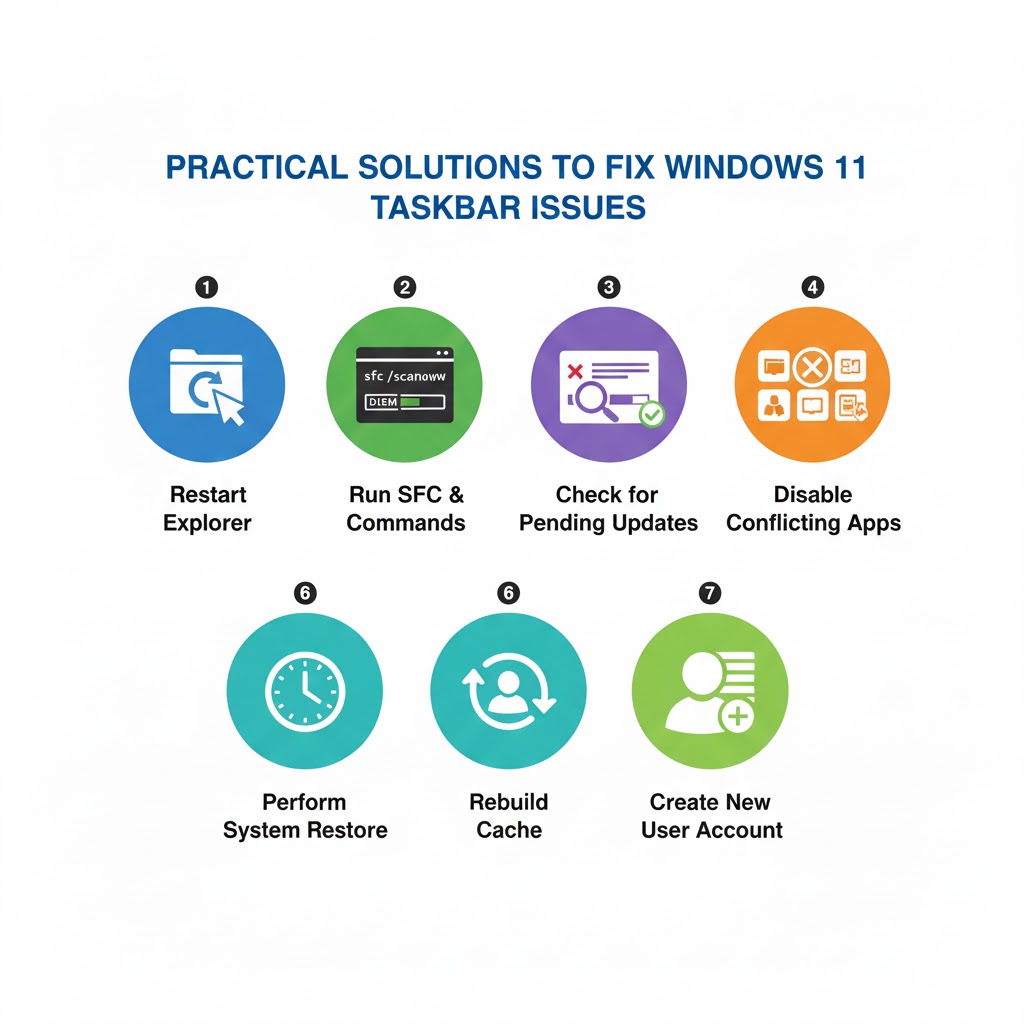
Practical Solutions to Fix Windows 11 Taskbar After Update
There are multiple methods to address the taskbar not working in Windows 11. Implementing the following fixes has helped many users regain full functionality.
Restart Windows Explorer
Restarting Windows Explorer often resolves a frozen taskbar. Follow these steps:
- Press
Ctrl + Shift + Escto open Task Manager. - Scroll down and find
Windows Explorer. - Right-click and select
Restart.
This refreshes the taskbar and often restores responsiveness immediately.
Run System File Checker and DISM
Corrupted system files are a common culprit. Running sfc /scannow and DISM can repair these files.
- Open
Command Promptas Administrator. - Enter
sfc /scannowand press Enter. - After completion, type
DISM /Online /Cleanup-Image /RestoreHealthand press Enter.
This process ensures that Windows 11 system files, including those responsible for the taskbar, are intact.
Check for Pending Updates
Sometimes, a new update is available that fixes taskbar issues caused by previous updates.
- Go to
Settings > Windows Update. - Click
Check for updates. - Install any pending updates.
Keeping Windows 11 updated reduces the likelihood of taskbar or start menu problems.
Disable Problematic Third-Party Applications
Some applications may interfere with the taskbar after an update.
- Press
Ctrl + Shift + Escto open Task Manager. - Identify recently installed or suspicious applications.
- Right-click and choose
End task.
If the taskbar starts working, consider uninstalling the conflicting application permanently.
Rebuild the Icon Cache
A corrupted icon cache can also cause taskbar issues.
- Press
Win + Rand type%localappdata%\Microsoft\Windows\Explorer. - Delete all files starting with
iconcache. - Restart your computer.
This rebuilds the taskbar icons and may restore normal operation.
Perform a System Restore
If the taskbar still does not work, performing a system restore to a point before the update can be effective.
- Go to
Control Panel > Recovery > Open System Restore. - Choose a restore point before the update.
- Follow the prompts to restore your system.
System restore reverts any changes causing taskbar malfunctions.
Create a New User Account
In some cases, a corrupted user profile can affect taskbar functionality. Creating a new user account often resolves the issue.
- Open
Settings > Accounts > Family & other users. - Click
Add account. - Set up a new account and log in.
If the taskbar works in the new account, consider transferring your files and using the new account as primary.
Reset Windows 11
As a last resort, resetting Windows 11 without losing personal files can solve persistent taskbar issues.
- Go to
Settings > System > Recovery > Reset this PC. - Choose
Keep my filesand follow instructions.
This reinstalls Windows components responsible for taskbar and start menu functionality.
Real User Cases and Expert Insights
Many users report taskbar issues following major Windows 11 updates. For instance, after the 2023 October update, users complained about a frozen taskbar and unresponsive start menu. Experts recommend prioritizing simple fixes like restarting Windows Explorer and running system scans before attempting more invasive solutions like system restore.
Tech forums reveal that over 60% of users experiencing Windows 11 Taskbar Frozen After Update resolved their issue using the sfc /scannow and DISM commands. Professional IT specialists emphasize maintaining regular backups and creating system restore points before installing updates.
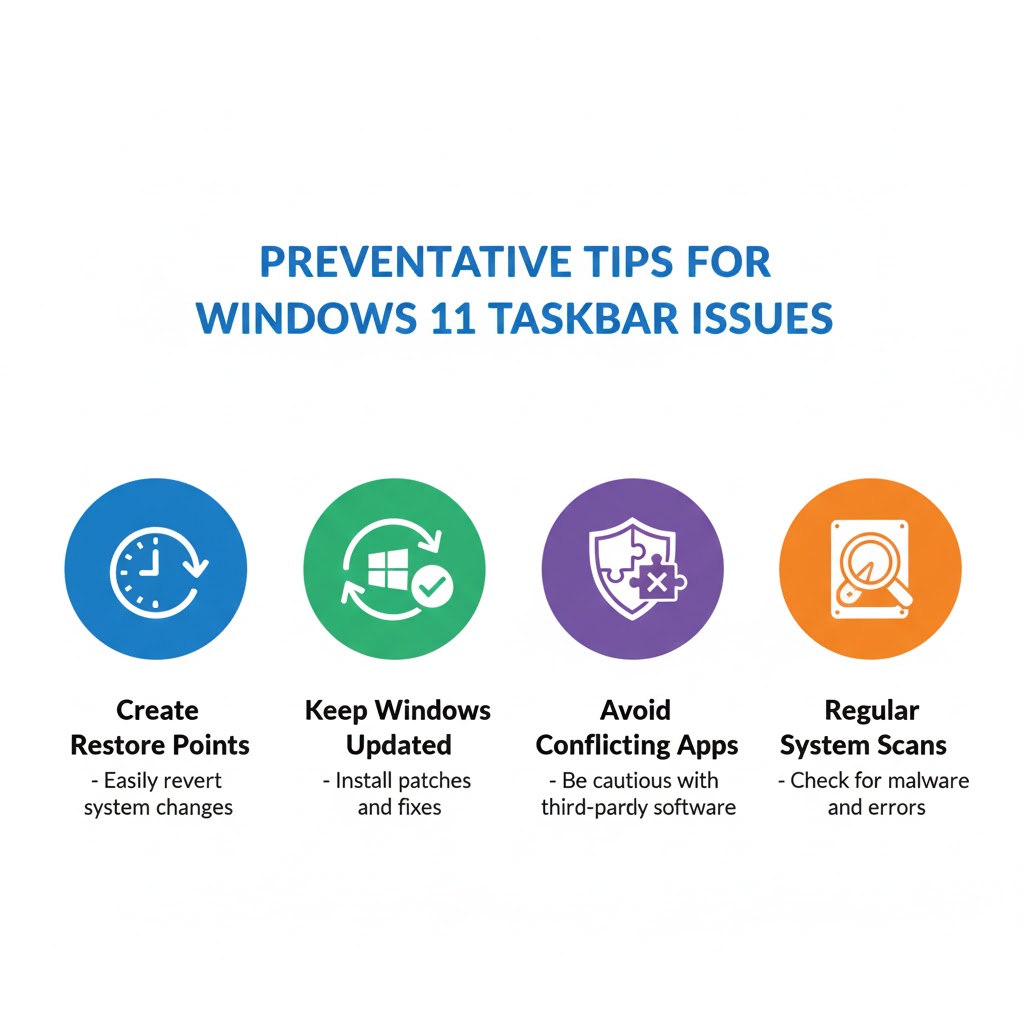
Tips to Prevent Taskbar Issues in Windows 11
Proactive measures can minimize taskbar problems in the future.
- Always create a system restore point before major updates.
- Keep Windows 11 and device drivers up-to-date.
- Limit third-party applications that modify system interfaces.
- Regularly perform system scans with
sfcand DISM tools.
Related Windows 11 Fixes
For other common Windows 11 issues, users can explore specialized solutions:
- Resolve screenshot issues in Windows 11 for uninterrupted workflow.
- Fix OneDrive files not showing up to avoid data access problems.
- Troubleshoot Outlook email not syncing on phone for uninterrupted communication.
- Address Edge browser crashes on Windows 10 for smooth browsing experience.
FAQs About Windows 11 Taskbar Frozen After Update
Q: Why is my Windows 11 taskbar frozen after an update?
A: A frozen taskbar is usually caused by corrupted system files, incomplete updates, or conflicts with third-party apps.
Q: Will restarting Windows Explorer fix taskbar issues permanently?
A: Restarting Windows Explorer often resolves temporary freezes, but underlying issues may require system scans or updates.
Q: Can I prevent taskbar problems after future updates?
A: Yes. Keeping your system updated, creating restore points, and avoiding conflicting apps can reduce the risk.
Conclusion
Taskbar Not Responding in Windows 11 can be frustrating, but most problems are solvable with practical solutions. From restarting Windows Explorer to running system scans and performing a system restore, users have multiple tools at their disposal. Implementing preventative measures and staying informed about updates helps maintain a fully functional taskbar. Applying these strategies ensures that workflow and productivity remain uninterrupted, keeping your Windows 11 experience smooth and efficient.