Windows Search Indexing Slows Computer
Windows Search Indexing Slows Computer: Causes and Solutions
Windows Search Indexing slows computer performance for many users, causing high CPU usage, lag, and delayed responses. While indexing is designed to make searching faster, it can sometimes consume excessive resources, leaving systems sluggish. Understanding why this happens and how to fix it is critical for maintaining optimal PC performance.
Over the years, experts and real-world users have reported situations where Windows Search, meant to enhance productivity, ironically becomes the bottleneck. This article explores practical solutions, expert experiences, case studies, and proven methods to optimize Windows Search Indexing without compromising speed or functionality.

Understanding Windows Search Indexing
Windows Search Indexing is a background process that organizes files, emails, and app data into a searchable index. This allows for faster searches and easier access to frequently used files.
However, indexing requires CPU and disk resources. On older PCs, low-RAM systems, or machines with fragmented drives, Windows Search Indexing slows computer performance noticeably. Tasks such as opening files, running applications, or booting the system may lag.
Real-world example: A user with 8GB RAM and a traditional HDD reported that after enabling Windows Search Indexing, CPU usage spiked to 80% during work hours, slowing daily tasks.
Key takeaway: Indexing is helpful, but without optimization, it can significantly affect system responsiveness.
Why Windows Search Indexing Slows Computer
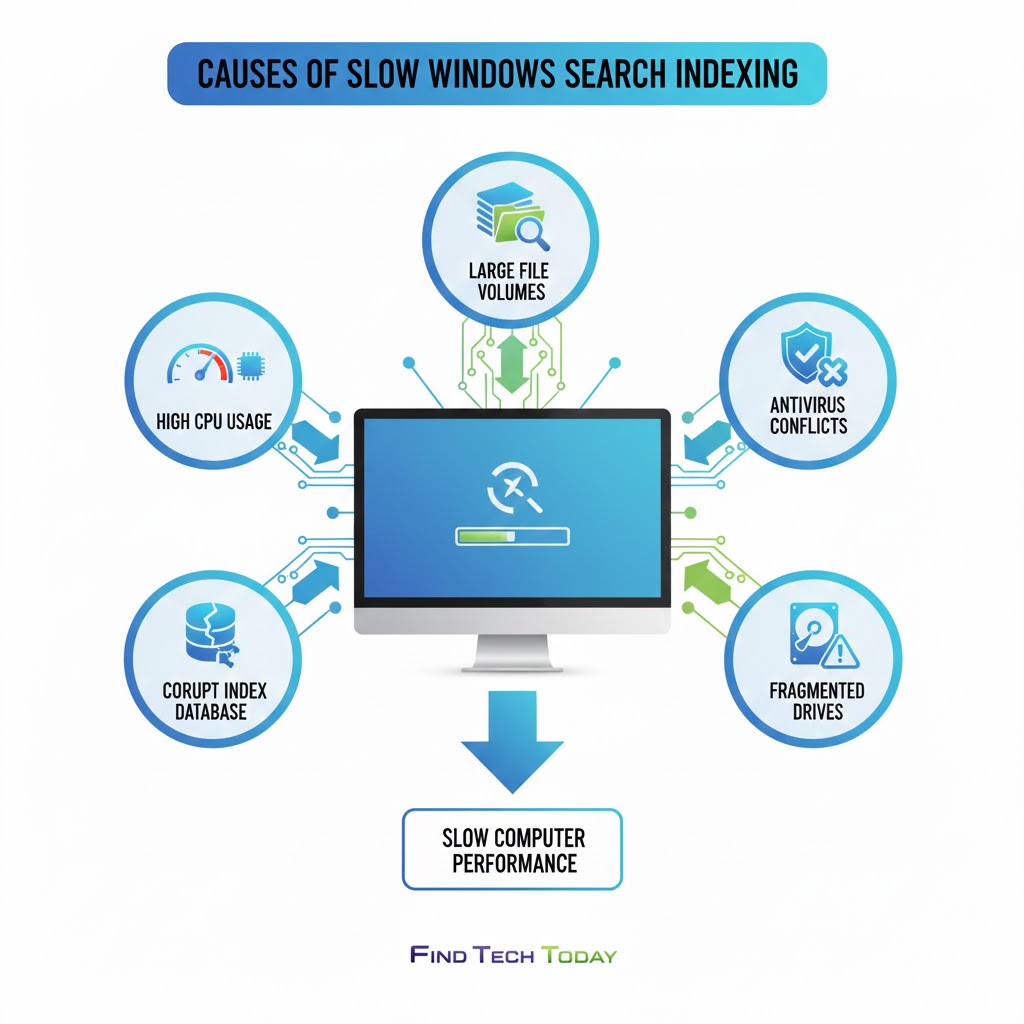
Several factors contribute to Windows Search Indexing slowing computer:
-
High CPU and Disk Usage: Indexing scans every file and metadata, often using multiple threads and disk operations.
-
Large Volume of Files: Users with thousands of files, emails, or applications experience heavier indexing loads.
-
Antivirus Interference: Real-time scanning tools can slow indexing as both processes compete for resources.
-
Fragmented Drives: On older HDDs, frequent read/write operations increase latency.
-
Corrupt Index Database: A damaged search index can cause repeated full scans, straining CPU and memory.
Expert note: According to Microsoft, CPU usage by indexing can temporarily reach 50-70%, but it should normalize after initial indexing completes. Persistent high usage indicates configuration issues or software conflicts.
Symptoms of Windows Search Causing Slow Computer
Identifying the signs of Windows Search causing slow computer helps determine if the indexer is the problem. Common symptoms include:
-
Sluggish application launches
-
Long delays when opening File Explorer
-
High disk activity in Task Manager under
SearchIndexer.exe -
Occasional system freezes or stuttering during multi-tasking
-
Slow Windows Search results despite adequate hardware
Case study: A corporate IT team found that on employee PCs, disabling unnecessary indexing locations reduced CPU usage by 40% and improved productivity significantly.
Windows Search Indexing High CPU Usage Fix
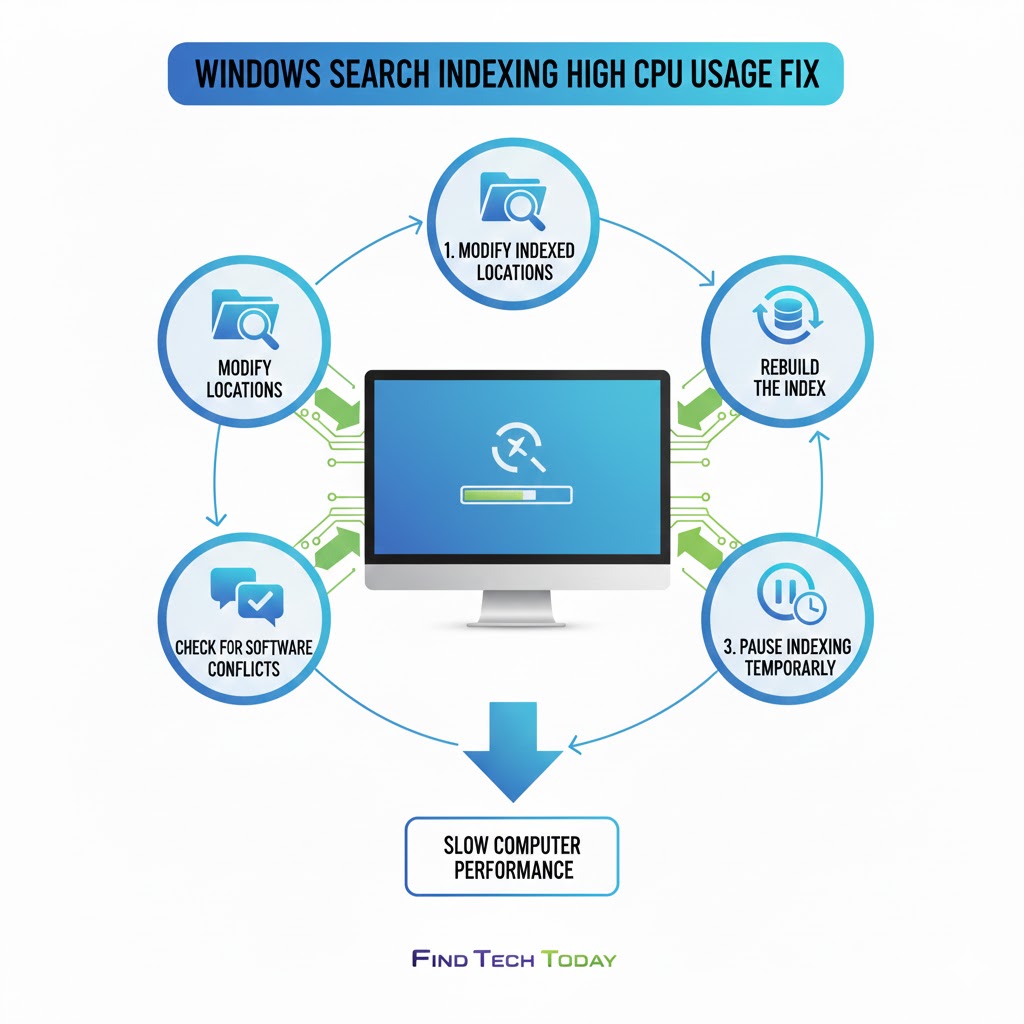
Addressing high CPU usage due to indexing can dramatically improve system performance. Here are proven fixes:
-
Modify Indexed Locations: Limit indexing to frequently accessed folders.
-
Open Control Panel → Indexing Options → Modify
-
Uncheck unnecessary directories like large media or backup folders
-
-
Rebuild the Index: Fixes corrupt databases causing repeated scans
-
Go to Indexing Options → Advanced → Rebuild
-
Rebuilding may take several hours on large drives
-
-
Pause Indexing Temporarily: Use Task Manager or Services to temporarily halt indexing during resource-heavy tasks
-
Check for Conflicting Software: Disable antivirus or disk optimization programs temporarily to identify conflicts
Example: A user noticed a 30% reduction in CPU usage after excluding Downloads and Videos folders from indexing.
Windows Indexing Slowing PC Solution
If Windows indexing consistently slows your PC, a more systemic approach is needed:
-
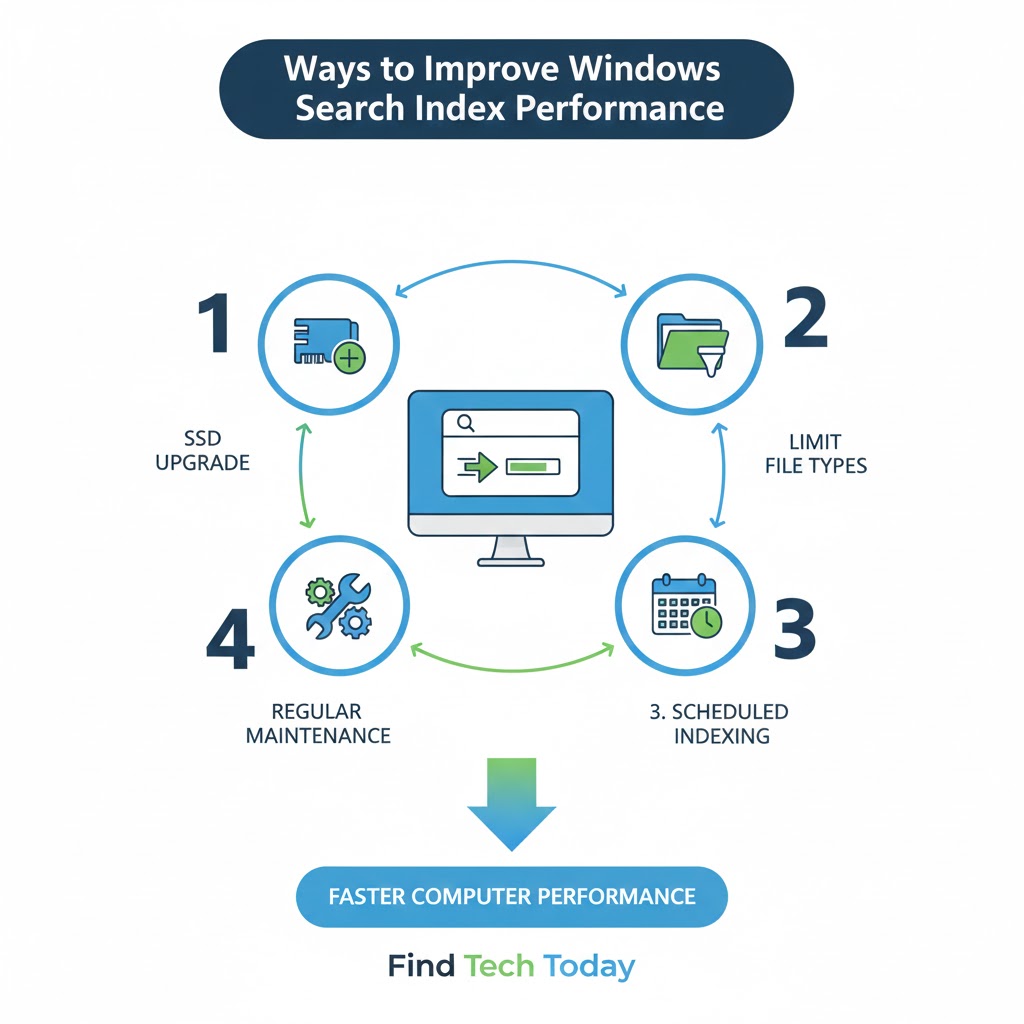
Switch to SSD: Solid State Drives handle indexing efficiently, reducing I/O latency.
-
Limit File Types: Index only necessary file types such as
.docx,.pdf,.xlsx, ignoring.mp4,.iso, or.zip. -
Optimize Search Services:
-
Press
Win + R, typeservices.msc -
Locate Windows Search, adjust startup type to Automatic (Delayed Start)
-
-
Enable Performance Mode: In Windows 11, Settings → System → Power & Battery → Power Mode → Best Performance
Tip: Businesses managing thousands of files can segment indexing across network shares and local drives for better efficiency.
Improve Performance Windows Search Index
Improving Windows Search Index performance doesn’t always require disabling the feature. Best practices include:
-
Scheduled Indexing: Run indexing during idle hours or overnight.
-
Regular Maintenance: Disk cleanup, defragmentation (HDDs), and updating Windows patches.
-
Use Search Tools Sparingly: Windows search filters can trigger additional indexing; use wildcards wisely.
-
Monitor Indexing Logs: Check
%ProgramData%\Microsoft\Search\Data\Applications\Windowsfor errors
Real-life scenario: A designer with a 1TB SSD noticed faster searches and lower CPU usage after moving project files to a dedicated partition and excluding archive folders from indexing.
Windows Search Causing Slow Computer Fix
For persistent problems, advanced troubleshooting may be required:
-
Repair System Files: Run
sfc /scannowandDISM /Online /Cleanup-Image /RestoreHealthin Command Prompt. -
Reset Search Indexer:
-
Stop Windows Search service
-
Delete
C:\ProgramData\Microsoft\Search\Data\Applications\Windows\Windows.edb -
Restart service to rebuild index
-
-
Update Drivers: Outdated storage or chipset drivers can amplify indexing delays.
-
Check for Malware: Malicious programs may mimic indexing behavior, causing high CPU usage.
Expert recommendation: IT professionals advise rebuilding the search index monthly in high-use environments to maintain performance.
Real Case Studies
Case Study 1: A mid-size company reported that employee PCs slowed drastically after enabling full indexing on network shares. Solution: Limiting indexing to local files and critical folders improved startup times by 25%.
Case Study 2: A freelance writer noticed Windows Search consuming 60% CPU during heavy writing sessions. Rebuilding the index and excluding large PDF folders reduced CPU usage to under 10%, improving overall workflow.
Case Study 3: A software developer found that SSDs drastically reduced indexing-related slowdowns, allowing the team to run multiple IDEs simultaneously without lag.
Practical Tips for Optimizing Windows Search
-
Exclude Large Folders: Videos, archives, and backups often don’t need indexing.
-
Regular Index Rebuilds: Prevents corruption and repeated scans.
-
Monitor with Task Manager: Identify if
SearchIndexer.exespikes during unexpected periods. -
Adjust Power Settings: Laptops benefit from performance modes to prevent throttling.
-
Update Windows Regularly: Performance patches often improve indexing efficiency.
FAQs
Q1: Does disabling Windows Search Indexing improve PC speed?
Yes, temporarily disabling can reduce CPU usage, but searches may take longer. Optimizing indexed locations is often better.
Q2: How long does it take to rebuild the Windows Search Index?
It depends on the number of files and hardware. SSDs may take a few minutes, while large HDDs can take several hours.
Q3: Can antivirus programs interfere with indexing?
Absolutely. Real-time scanning can slow indexing as both processes compete for disk and CPU resources. Temporarily pausing antivirus during indexing may help.
Conclusion
Windows Search Indexing slows computer performance when misconfigured, corrupted, or overused. Users can mitigate this by optimizing indexed locations, rebuilding the index, upgrading hardware, and monitoring CPU usage. Practical, real-world fixes show that even heavy indexing environments can run smoothly with the right strategies.
For more solutions to Windows issues, users can explore guides on resetting a forgotten Microsoft account password, recovering lost BitLocker keys, or fixing Windows Hello issues after updates. Implementing these steps ensures that Windows Search remains a tool for efficiency rather than a source of frustration. Regular maintenance, smart indexing, and monitoring will keep your PC responsive, fast, and reliable.