Windows Update Error 0x80070002 Fix
What is the Windows Update Error 0x80070002 Fix
Experiencing Windows Update Error 0x80070002 can be frustrating, especially when your system refuses to install important updates. This common issue affects both Windows 10 and Windows 11 users and can disrupt productivity, slow down security patches, and cause compatibility problems. Fortunately, there are multiple solutions to resolve this problem efficiently.
This guide will cover practical steps, real-world examples, and expert advice to help you fix Windows Update Error 0x80070002. You will also find links to related guides for broader Windows troubleshooting.
Understanding Windows Update Error 0x80070002
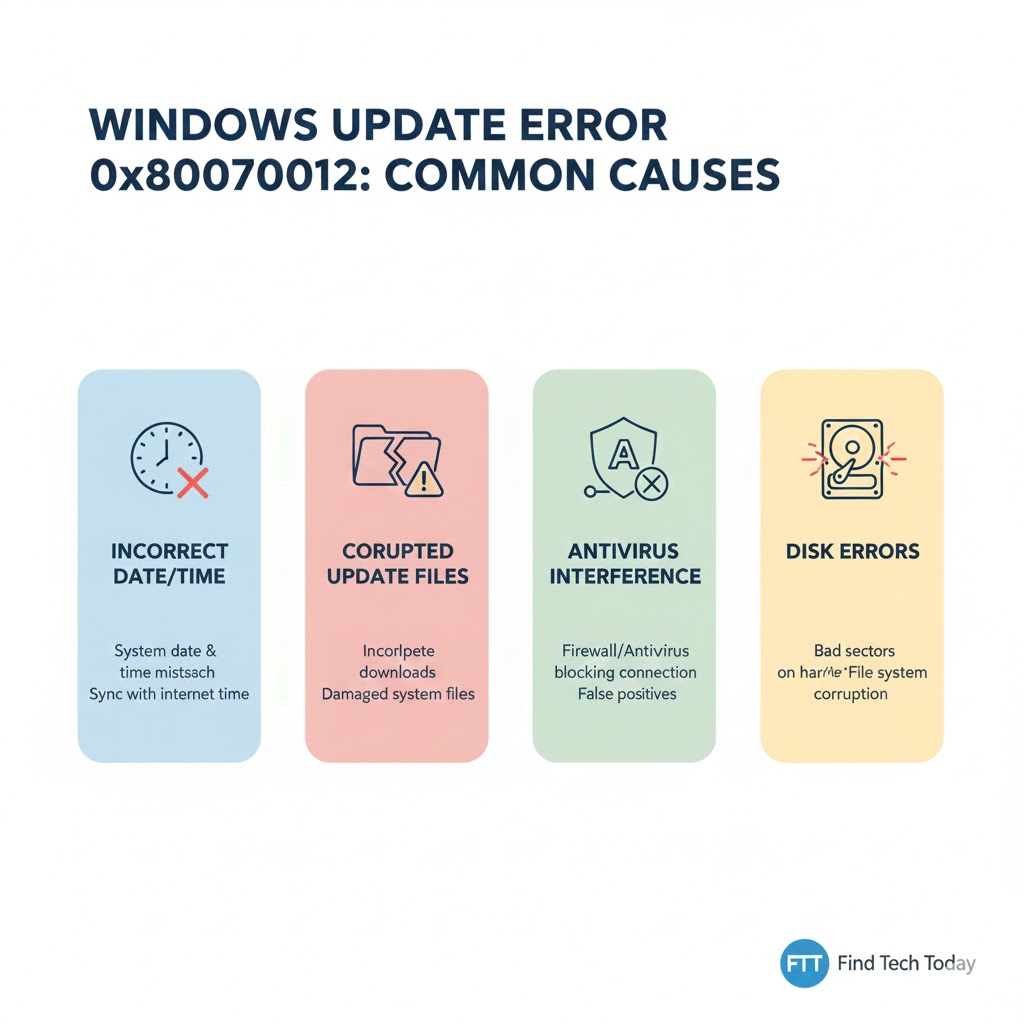
Windows Update Error 0x80070002 typically occurs when the update files on your system are missing or corrupted. This can happen due to:
-
Interrupted update processes
-
Incorrect system time or region settings
-
Corrupted Windows Update components
-
Faulty third-party software or antivirus interference
Experts recommend diagnosing the problem step by step rather than attempting multiple fixes at once. A systematic approach helps avoid additional errors and ensures updates install correctly.
Case Study: A user reported that after upgrading from Windows 10 to Windows 11, their system repeatedly displayed 0x80070002 when checking for updates. By verifying system time settings and deleting corrupted update files, they resolved the error within 20 minutes.
Fix Windows Update Error 0x80070002 by Checking System Time and Date
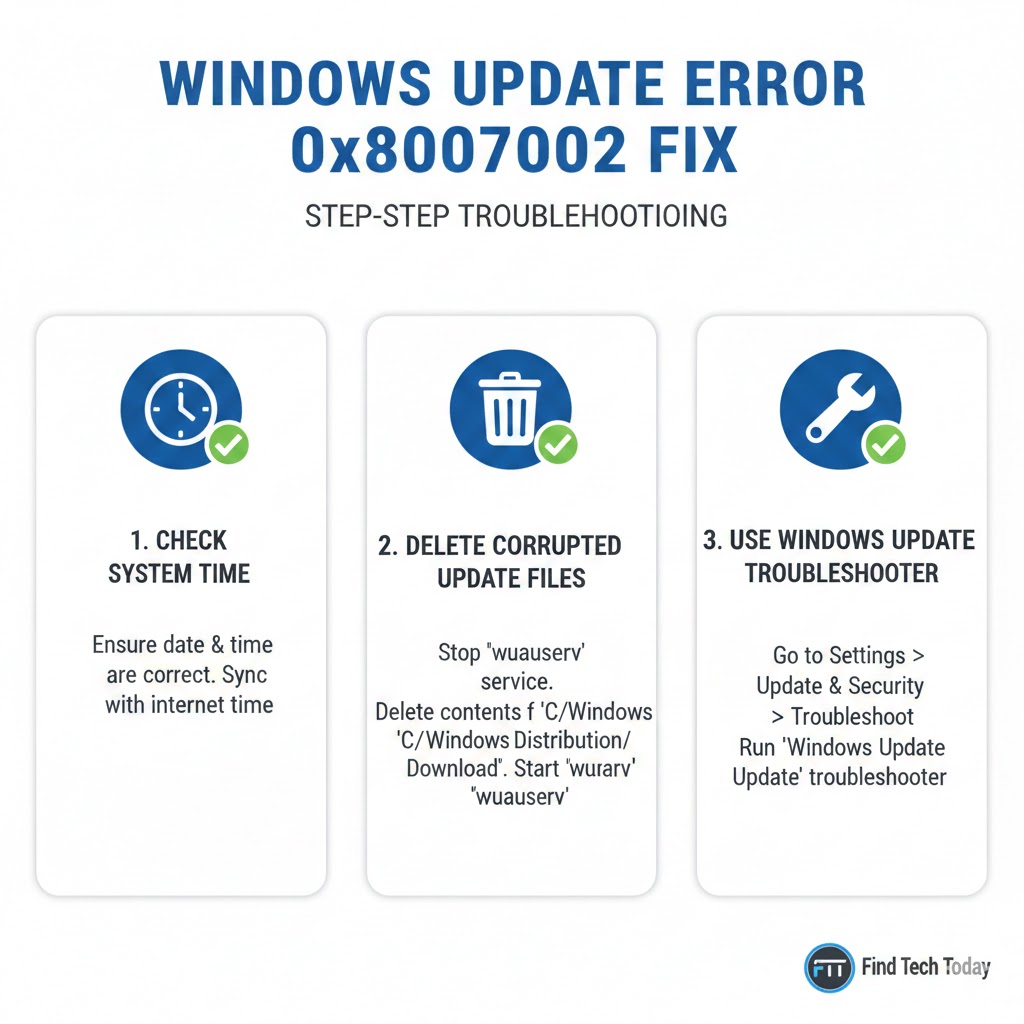
Incorrect system time and date can prevent Windows from validating update files. Windows requires accurate timestamps to match update certificates.
Steps to fix:
-
Right-click the date and time in the taskbar and select Adjust date/time.
-
Toggle Set time automatically and Set time zone automatically to
On. -
Restart your computer and check for updates.
Expert Tip: Some users experienced persistent errors due to mismatched region settings. Go to Settings > Time & Language > Region and ensure your country is correctly selected.
Delete Corrupted Windows Update Files
Corrupted or incomplete files often trigger 0x80070002. Deleting these files allows Windows to download fresh copies.
Steps:
-
Press
Win + R, typeservices.msc, and pressEnter. -
Locate Windows Update service, right-click, and choose Stop.
-
Navigate to
C:\Windows\SoftwareDistribution\Downloadand delete all files in the folder. -
Go back to Services, right-click Windows Update, and select Start.
-
Check for updates again.
Practical Example: A small business technician applied this method on multiple Windows 10 machines, which resolved the update error in less than an hour for all devices.
Use Windows Update Troubleshooter
Microsoft provides a built-in troubleshooter designed to automatically detect and repair update problems.
Steps:
-
Open Settings > Update & Security > Troubleshoot > Additional troubleshooters.
-
Click Windows Update > Run the troubleshooter.
-
Follow the on-screen instructions.
-
Restart your PC after completion.
Pro Tip: The troubleshooter often fixes underlying component issues, such as corrupted registry entries, without requiring advanced technical skills.
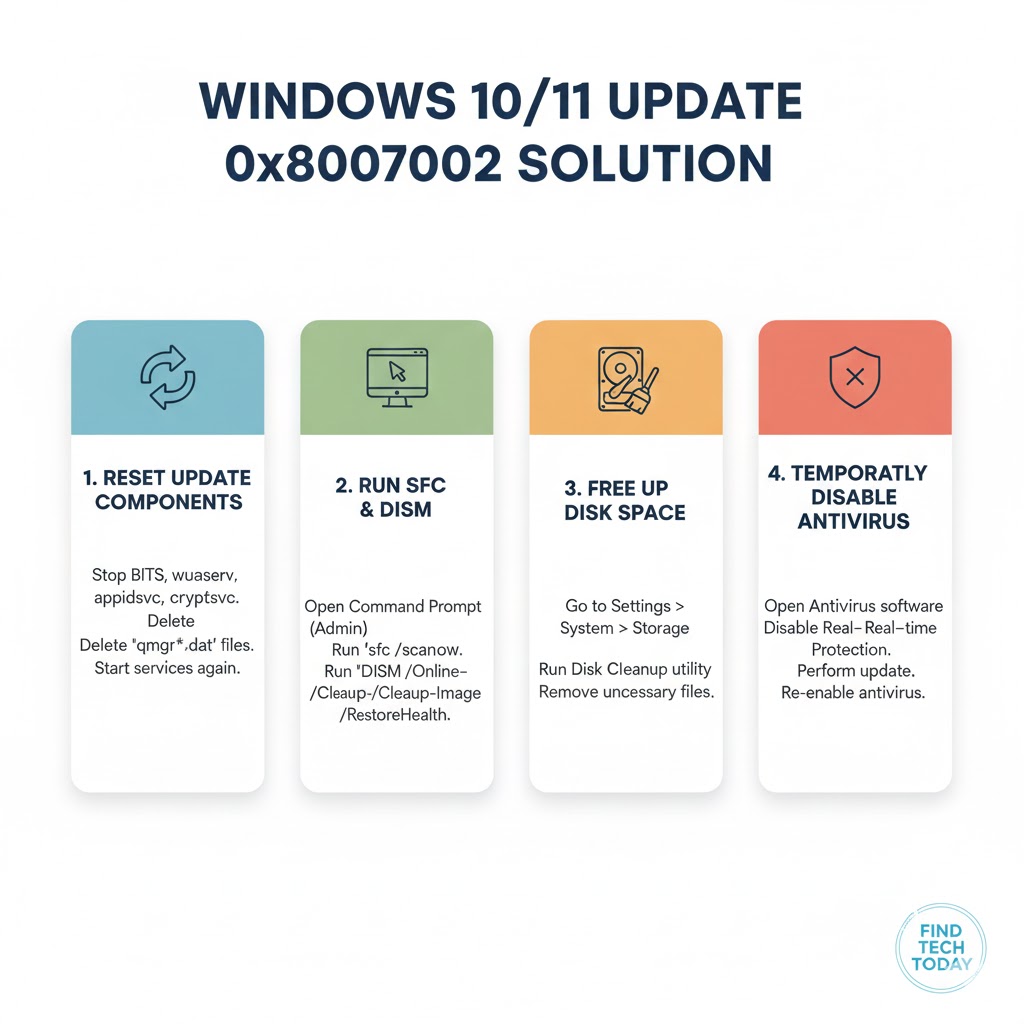
Reset Windows Update Components Manually
If the problem persists, manually resetting update components can resolve deeper issues.
Steps:
-
Open Command Prompt as administrator.
-
Stop update services:
-
Rename the update folders:
-
Restart the services:
-
Reboot the system and check for updates.
Expert Insight: IT specialists recommend this method when multiple updates fail repeatedly. It refreshes the system’s update cache and resolves hidden corruption issues.
Check for Disk Errors
Hard drive errors can also interfere with Windows Update. Using the built-in chkdsk tool can identify and repair these problems.
Steps:
-
Open Command Prompt as administrator.
-
Run the command:
-
Follow the prompts and restart your PC.
Case Study: A user with 0x80070002 on Windows 11 discovered bad sectors on their hard drive. Running chkdsk allowed the system to complete updates successfully after repair.
Free Up Disk Space
Insufficient disk space can prevent updates from installing. Clearing temporary files can help.
Steps:
-
Press
Win + R, typecleanmgr, and pressEnter. -
Select the system drive (usually C:) and click OK.
-
Check Temporary files, Recycle Bin, and Previous Windows installations.
-
Click Clean up system files and restart.
Pro Tip: Combine this with disabling unnecessary startup programs for a smoother update process.
Disable Third-Party Antivirus Temporarily
Some antivirus programs block Windows updates, causing 0x80070002. Temporarily disabling the antivirus or firewall can help.
Steps:
-
Open your antivirus software and disable real-time protection.
-
Check for updates.
-
Re-enable protection after updates are installed.
Warning: Only disable security software temporarily and ensure your PC is not exposed to risky downloads.
Use System File Checker and DISM Tool
Corrupted system files can interfere with Windows updates. Use sfc and DISM to repair them.
Steps:
-
Open Command Prompt as administrator.
-
Run:
-
After completion, run:
-
Restart your PC and check for updates.
Expert Advice: Combining sfc and DISM ensures both system file integrity and Windows image health, often resolving stubborn update issues.
Real-World Examples of Fixing 0x80070002
-
Corporate Environment: A medium-sized company faced
0x80070002on 50 Windows 10 PCs. IT applied a batch script to reset update components and clean theSoftwareDistributionfolder. All machines updated successfully within 90 minutes. -
Home Users: A Windows 11 user resolved the error by correcting time settings and deleting corrupted update files. Updates completed in 20 minutes.
-
Mixed Methods: Some users needed a combination of disk cleanup,
sfc /scannow, and Windows Update Troubleshooter to finally fix the problem.
Preventing Windows Update Errors in the Future
-
Always keep your system date and time accurate.
-
Regularly clean temporary files.
-
Avoid abrupt shutdowns during updates.
-
Ensure antivirus software is compatible with Windows Update.
-
Check disk health periodically.
Pro Tip: Enabling Automatic Updates ensures your system downloads and installs updates without user intervention, reducing the chances of manual errors.
Related Resources for Windows Troubleshooting
If you encounter other Windows-related issues, consider these helpful guides:
-
Learn how to resolve Windows 11 Screenshot Not Working effectively.
-
Fix your Windows 11 Taskbar Not Working After Update with simple steps.
-
Resolve issues if your Start Menu Search is Not Working in Windows 10.
-
Repair File Explorer Not Responding in Windows 11 quickly.
FAQs About Windows Update Error 0x80070002
Q1: Why am I still getting 0x80070002 after following all steps?
A1: Some cases require performing a repair installation of Windows. Backup your data and use the Media Creation Tool to reinstall Windows without losing files.
Q2: Can third-party software cause 0x80070002?
A2: Yes, antivirus, firewalls, and disk optimization tools can block update files. Temporarily disabling them often resolves the issue.
Q3: Is it safe to delete SoftwareDistribution folder?
A3: Yes, Windows automatically recreates the folder when you restart update services. Only delete its contents, not the folder itself.
Conclusion
Windows Update Error 0x80070002 can disrupt system performance, but it is solvable with step-by-step troubleshooting. By checking system time, clearing corrupted files, resetting update components, and using built-in repair tools, most users can restore smooth updates. Regular maintenance, disk health checks, and cautious use of third-party software can prevent future errors.
Following these proven methods ensures your Windows 10 or Windows 11 system stays secure, up-to-date, and error-free. Efficient updates keep your PC running optimally, protect against vulnerabilities, and improve overall performance.