Network Discovery Turned Off Error
Network Discovery Turned Off Error: Complete Windows Fix Guide
Network Discovery Turned Off Error is a common issue faced by Windows users that prevents devices on a network from detecting each other. This error can disrupt file sharing, printer connections, and collaborative network usage, making it a frustrating problem for both personal and professional setups. Understanding why this happens and how to fix it effectively is crucial for smooth network operations.
Many users encounter this error after a Windows update, firewall change, or incorrect network configuration. In this guide, we will explore practical solutions, expert insights, and real-life examples to help you resolve the Network Discovery Turned Off Error efficiently.

Understanding the Network Discovery Turned Off Error
Network Discovery is a feature in Windows that allows your computer to see and communicate with other devices on the same network. When this feature is turned off or blocked, you may experience issues such as:
- Inability to see other computers or devices on the network.
- Network printers or shared drives not appearing.
- Difficulty connecting to a homegroup or workgroup.
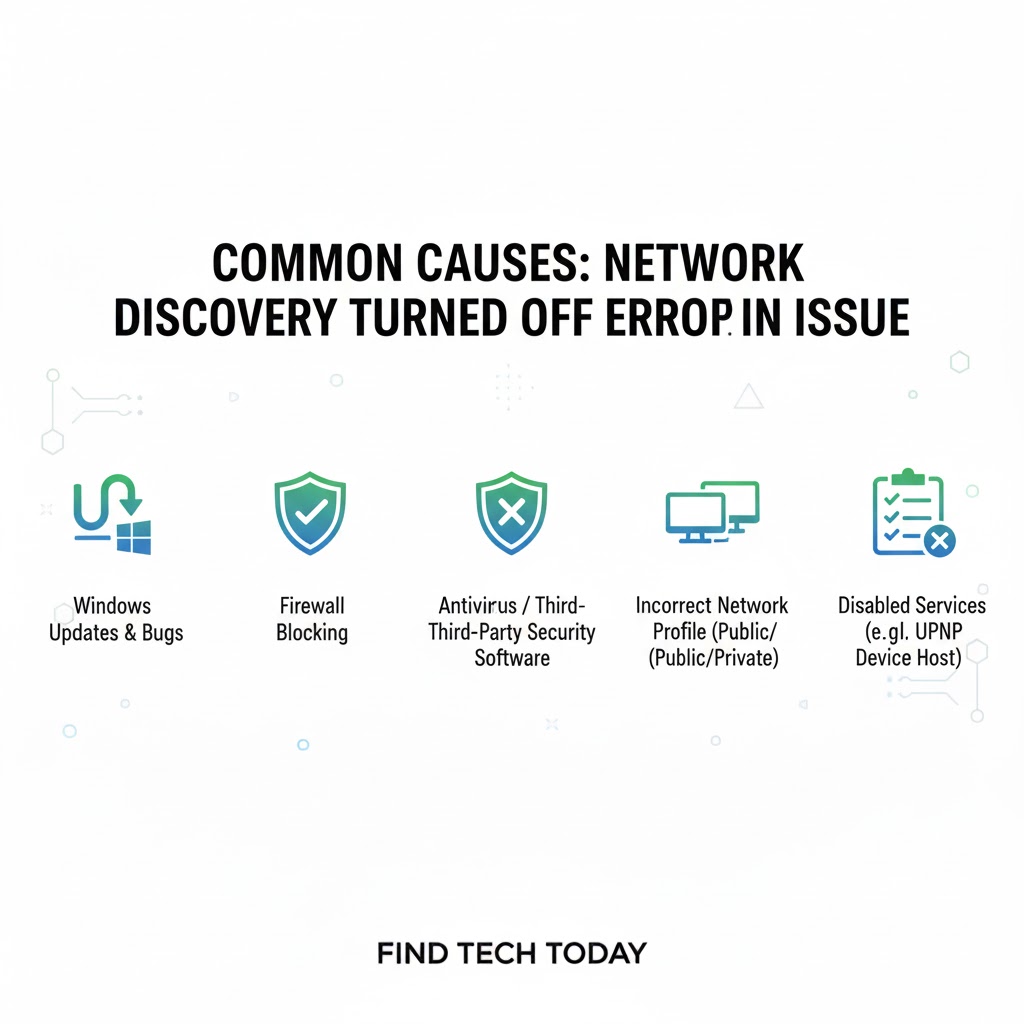
This error typically occurs due to:
- Firewall or antivirus software blocking network discovery.
- Incorrect network profile settings.
- Disabled essential services like
Function Discovery Resource PublicationorSSDP Discovery.
A real-world example comes from a small business in New York, where the IT team noticed that after a Windows update, several office computers could no longer access shared drives. The solution involved enabling necessary services and adjusting firewall settings, which restored network visibility across all devices.
Fix Network Discovery Disabled Error Step-by-Step
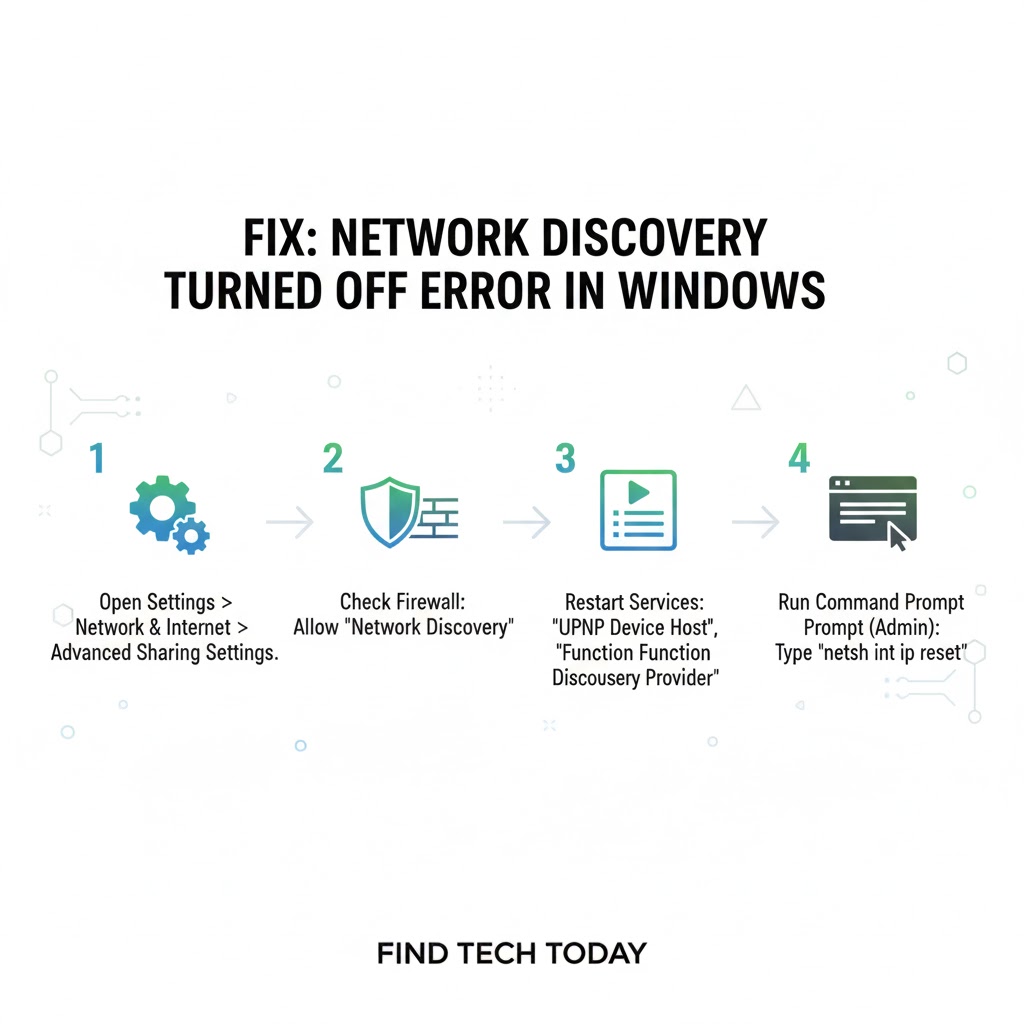
Solving this problem requires a structured approach. Follow these steps carefully:
Enable Network Discovery in Windows Settings
- Open Control Panel and navigate to Network and Sharing Center.
- Click Change advanced sharing settings.
- Expand your current network profile (Private or Public).
- Turn on Network discovery and File and printer sharing.
- Save changes.
This simple step often resolves the issue, especially for personal networks.
Check Windows Services
Network Discovery relies on several services to function correctly. Ensure these are running:
Function Discovery Provider HostFunction Discovery Resource PublicationSSDP DiscoveryUPnP Device Host
To check and start services:
- Press
Win + R, typeservices.msc, and press Enter. - Locate each service, right-click, and select Start.
- Set the Startup Type to Automatic for continuous functionality.
Adjust Firewall Settings
Windows Firewall or third-party security software may block network discovery. Allow it through the firewall:
- Open Control Panel > Windows Defender Firewall.
- Click Allow an app or feature through Windows Defender Firewall.
- Ensure Network Discovery is checked for your network profile.
Expert experience shows that disabling firewall temporarily can help identify if it is the root cause. However, never leave your firewall disabled.
Reset Network Components
Sometimes, network configurations get corrupted. Resetting helps:
- Open Command Prompt as Administrator.
- Run the following commands:
netsh int ip resetnetsh winsock reset
- Restart your PC.
This clears network stacks and often resolves lingering connectivity issues.
Verify Network Profile
Windows classifies networks as Private or Public. Network Discovery works best on Private networks:
- Go to Settings > Network & Internet > Status.
- Click Properties under your connected network.
- Ensure Network profile is set to Private.
Changing the profile can restore visibility to other devices.
Windows Network Discovery Not Working Solution in Specific Cases
Some users face persistent issues despite following the above steps. Here’s how to tackle specific scenarios:
After Windows Updates
Updates can reset network settings. If Network Discovery stops working:
- Reapply all the steps above.
- Check for optional updates related to network drivers.
- Restart the Function Discovery Resource Publication service.
On Corporate Networks
Network policies may block discovery. Consult your IT administrator to:
- Whitelist network discovery ports.
- Adjust group policy settings.
- Ensure devices are in the same subnet.
With Third-Party Security Software
Antivirus or firewall tools may interfere. Temporarily disable them to test connectivity. Consider adding exceptions rather than permanent disabling.
A case study from a university network showed that enabling specific UPnP and SSDP services restored network visibility across hundreds of student computers.
Enable Network Discovery Windows Error Fix via Command Prompt
Advanced users can use Command Prompt for quick fixes:
- Open Command Prompt as Administrator.
- Run the command:
netsh advfirewall firewall set rule group="Network Discovery" new enable=Yes
- Restart your PC.
This method directly enables firewall rules related to Network Discovery and can bypass graphical settings issues.
Common Mistakes to Avoid
- Ignoring firewall configurations.
- Leaving essential services disabled.
- Not switching the network profile to Private.
- Forgetting to restart the PC after changes.
Many users fix one setting but forget another, causing continued errors.
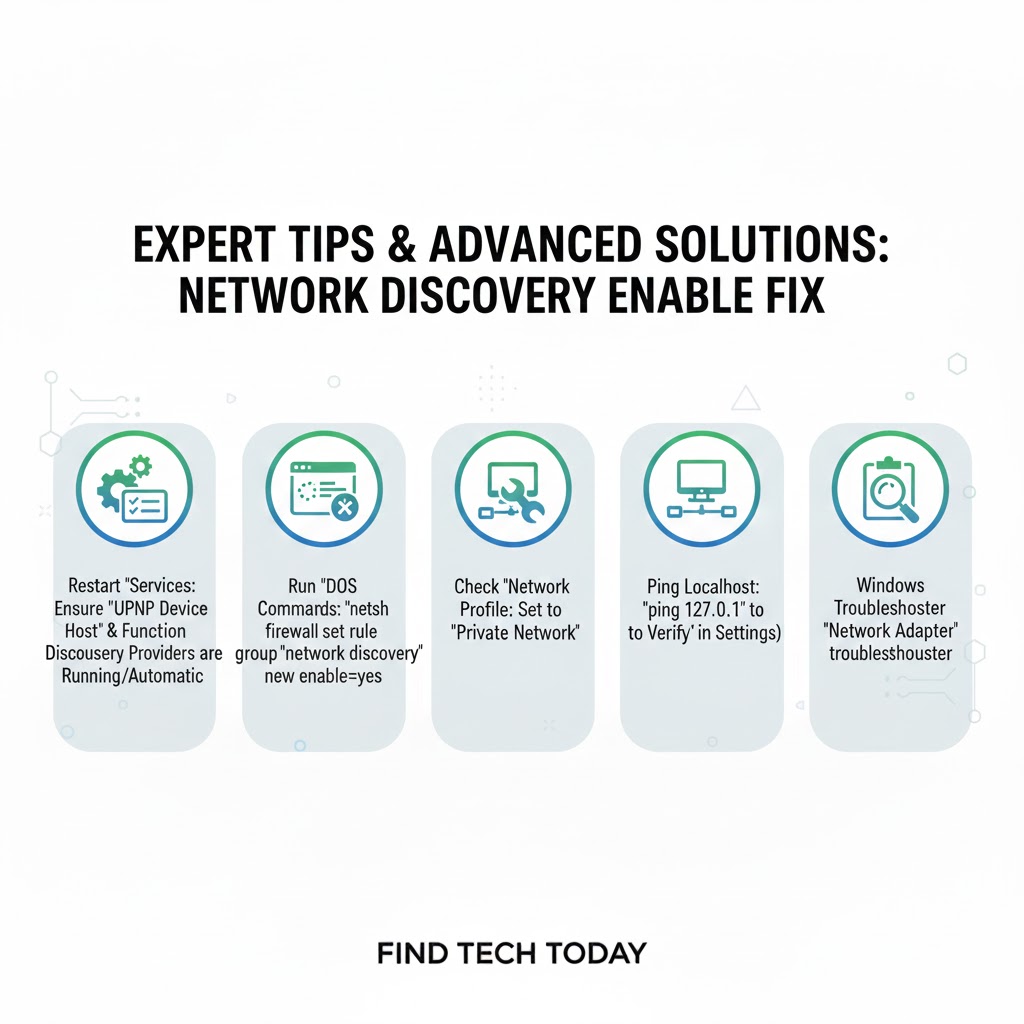
Expert Tips for Seamless Network Discovery
- Keep your network drivers updated.
- Ensure all devices are on the same subnet.
- Regularly check firewall and antivirus settings.
- Use static IP addresses for critical devices to avoid conflicts.
Related Tools
If you face other related issues, these guides can help:
- Resolve printer issues when your networked printer isn’t detected.
- Fix Windows 11 WiFi problems that affect network connectivity.
- Troubleshoot Ethernet problems in Windows 10 for wired connections.
For more technical tips and articles, visit Find Tech Today.
FAQs
Q1: Why does Network Discovery keep turning off?
Network Discovery may turn off due to Windows updates, firewall changes, or misconfigured network profiles. Ensuring services are running and your network is set to Private usually solves the issue.
Q2: Can antivirus software cause the Network Discovery Turned Off Error?
Yes, third-party antivirus and firewall software may block network discovery. Temporarily disabling or creating exceptions can help identify the cause.
Q3: Is it safe to enable Network Discovery on public networks?
Enabling Network Discovery on public networks is not recommended due to security risks. Always use it on trusted Private networks for safety.
Conclusion
The Network Discovery Turned Off Error can significantly disrupt network functionality, but it is manageable with a systematic approach. By enabling network discovery, checking services, adjusting firewalls, and using advanced command-line fixes, most Windows users can restore seamless connectivity. Practical tips, expert advice, and careful monitoring of network profiles ensure long-term stability. Following these steps not only resolves current issues but also prevents future network problems.
Proper implementation of these solutions, along with guidance from resources like Find Tech Today, ensures a reliable and secure Windows networking experience.