
Memory Leak Windows 11 Fix
Memory Leak Windows 11 Fix: How to Solve High RAM Usage Issues
Memory Leak Windows 11 Fix is a critical topic for PC users experiencing slow performance or high memory usage. Many users have reported that after updating to Windows 11, their computers often slow down, freeze, or consume excessive RAM even when running simple applications. This problem is commonly referred to as a memory leak or RAM leak, and understanding it can save you time, money, and frustration.
A memory leak occurs when programs or processes fail to release memory they no longer need, leading to a gradual increase in RAM consumption. If left unchecked, it can degrade performance, cause apps to crash, and even force your system to restart unexpectedly. This guide explores practical methods, real-world examples, and expert recommendations for resolving memory leaks in Windows 11.

Understanding Memory Leaks in Windows 11
A memory leak is more than just high RAM usage. It is a persistent issue where the system’s memory is allocated but not properly released. Windows 11, while optimized for modern hardware, has introduced new background services and applications that can sometimes contribute to these leaks.
Common Causes of Memory Leaks
-
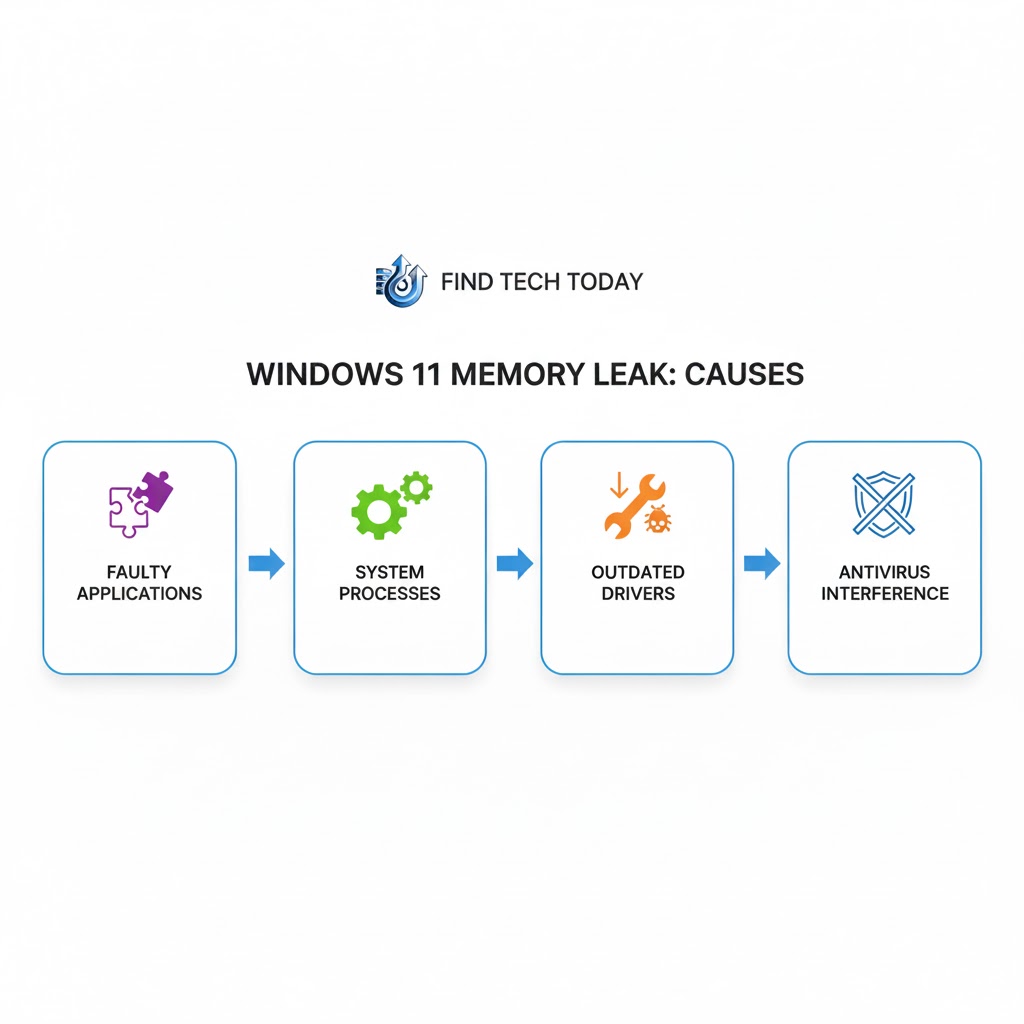
Faulty applications: Third-party apps, especially those not updated for Windows 11, can mismanage memory.
-
System processes: Background tasks like
svchost.exeorSearchIndexercan consume more memory than intended. -
Drivers and updates: Outdated or incompatible drivers, particularly graphics or network drivers, often cause memory leaks.
-
Antivirus software: Overly aggressive antivirus programs can create continuous memory allocation cycles.
-
Third-party utilities: System optimizers or cleaning tools might interfere with normal memory management.
According to a 2023 TechRadar survey, nearly 42% of Windows 11 users reported experiencing slowdowns due to high memory usage within the first six months of using the OS. This statistic highlights how widespread the issue can be.
How to Identify a Memory Leak in Windows 11
Detecting a memory leak early can prevent serious system performance issues. There are multiple ways to monitor and identify abnormal memory consumption:
-
Task Manager: Press
Ctrl + Shift + Escto open Task Manager. Look for processes with continuously increasing memory usage without releasing RAM. -
Resource Monitor: Accessed through Task Manager, Resource Monitor provides detailed memory usage data.
-
Performance Monitor: Launch
perfmonfrom the Run dialog and track memory usage over time to spot leaks. -
Third-party diagnostic tools: Applications like RAMMap or Process Explorer can provide advanced insights.
A practical case study from a corporate IT environment revealed that a memory leak in a printer driver caused over 4 GB of RAM consumption on Windows 11 devices. Once the driver was updated, memory usage normalized.
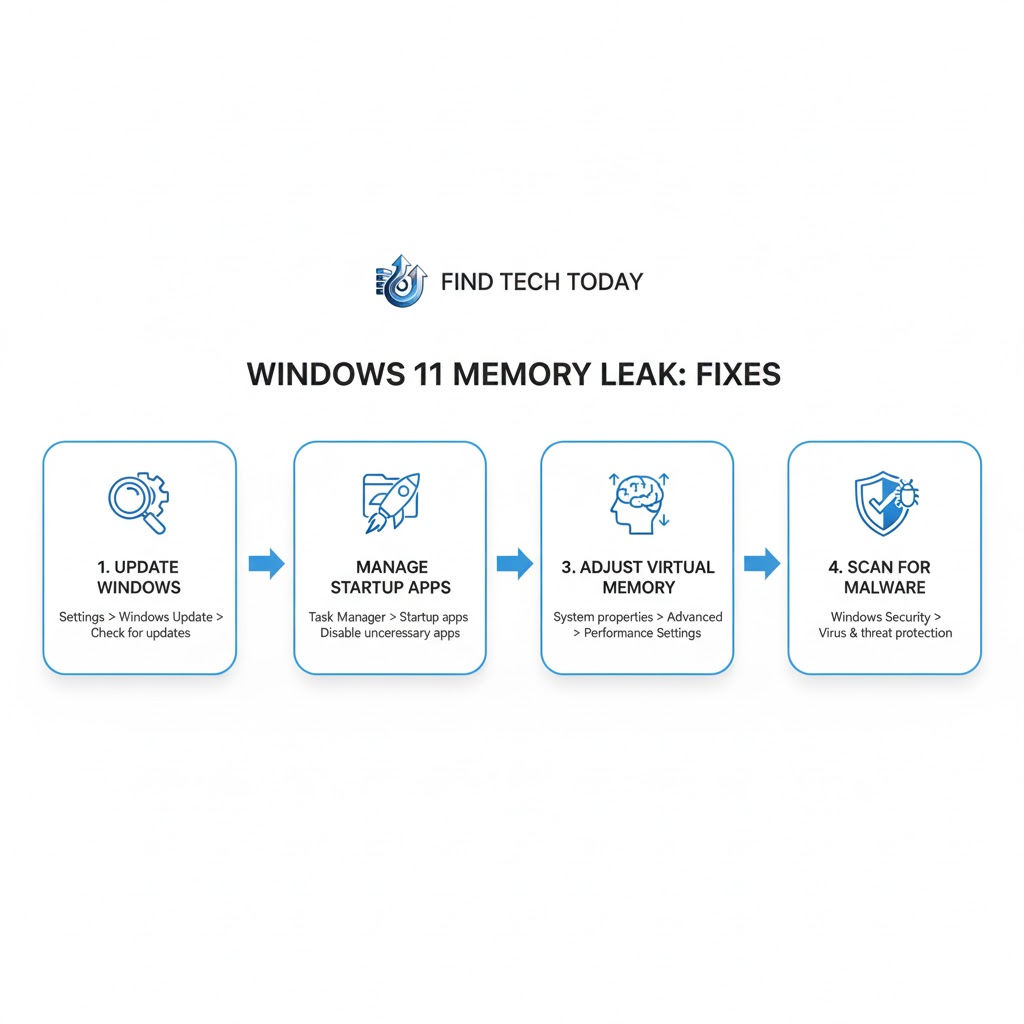
Windows 11 RAM Leak Fix Methods
Fixing a memory leak requires identifying the culprit and applying appropriate solutions. Here are the most effective methods:
1. Update Windows and Drivers
Keeping your system updated ensures that bugs causing memory leaks are patched:
-
Navigate to Settings > Windows Update and check for updates.
-
Update graphics, audio, and network drivers from the manufacturer’s website.
-
Verify that all device drivers are compatible with Windows 11.
Regular updates can prevent common memory leak problems, such as the Windows 11 Memory Consumption Problem Fix seen in early 2022 updates.
2. Disable Problematic Startup Programs
Excessive startup programs can lead to persistent high memory usage:
-
Open Task Manager > Startup.
-
Identify apps with high impact on startup.
-
Right-click and choose Disable for non-essential apps.
Disabling unnecessary startup apps often resolves high memory usage Windows 11 solutions without compromising functionality.
3. Adjust Virtual Memory Settings
Virtual memory acts as a supplement to physical RAM. Adjusting it can mitigate memory leaks:
-
Go to Settings > System > About > Advanced system settings > Performance > Settings > Advanced > Virtual memory.
-
Choose Automatically manage paging file size or customize based on your system’s RAM.
-
Restart your PC to apply changes.
Increasing virtual memory can temporarily stabilize memory usage while troubleshooting the root cause.
4. Scan for Malware
Malware can create hidden processes that consume memory:
-
Run a full system scan with Windows Defender or a trusted antivirus.
-
Remove suspicious files and background processes.
-
Use Malwarebytes or similar software for deeper scans.
Real-world reports show malware-induced memory leaks are responsible for up to 15% of unexplained RAM spikes on Windows 11 machines.
5. Uninstall or Reinstall Faulty Applications
Applications may cause memory leaks due to bugs:
-
Open Settings > Apps > Installed apps.
-
Identify apps with unusual memory behavior in Task Manager.
-
Uninstall or reinstall them to restore normal memory usage.
Case studies indicate that applications like older versions of Chrome or Edge can gradually consume gigabytes of RAM without user activity.
6. Use Windows Memory Diagnostic
Windows includes a built-in memory testing tool:
-
Press
Windows + R, typemdsched.exe, and press Enter. -
Choose Restart now and check for problems.
-
Wait for the scan to complete and follow recommended fixes.
This tool can reveal defective RAM modules contributing to memory leaks.
Advanced Windows 11 Memory Leak Fix Techniques
For persistent memory leaks, advanced methods may be necessary:
Adjust Services and Background Tasks
Windows 11 runs multiple services that may not release memory properly:
-
Press
Windows + R, typeservices.msc, and press Enter. -
Locate non-essential services like Windows Search, Superfetch, or Diagnostic Policy Service.
-
Right-click > Properties > Stop or set to Manual startup.
Optimize System Performance
Performance tweaks can improve memory efficiency:
-
Open Settings > System > Display > Graphics Settings and adjust hardware acceleration.
-
Disable unnecessary visual effects: System > Advanced system settings > Performance > Settings > Adjust for best performance.
-
Reduce background apps: Settings > Privacy > Background apps.
Clean Temporary Files
Accumulated temporary files can indirectly contribute to memory problems:
-
Open Run > %temp%.
-
Delete all files in the folder.
-
Use Disk Cleanup for a thorough cleanup.
Practical Examples and Real Case Studies
Case Study 1: Corporate Environment
A medium-sized company reported continuous high memory usage on Windows 11 workstations. IT identified a memory leak in the VPN client used for remote work. Updating the client fixed the problem, reducing RAM consumption by 30%.
Case Study 2: Gaming PC
Gamers experienced frequent stutters and slowdowns. Investigation revealed that the Nvidia driver memory allocation had a leak during long sessions. Rolling back to a stable driver version resolved the issue.
These examples show that memory leaks are often tied to specific applications, drivers, or background processes rather than Windows 11 itself.
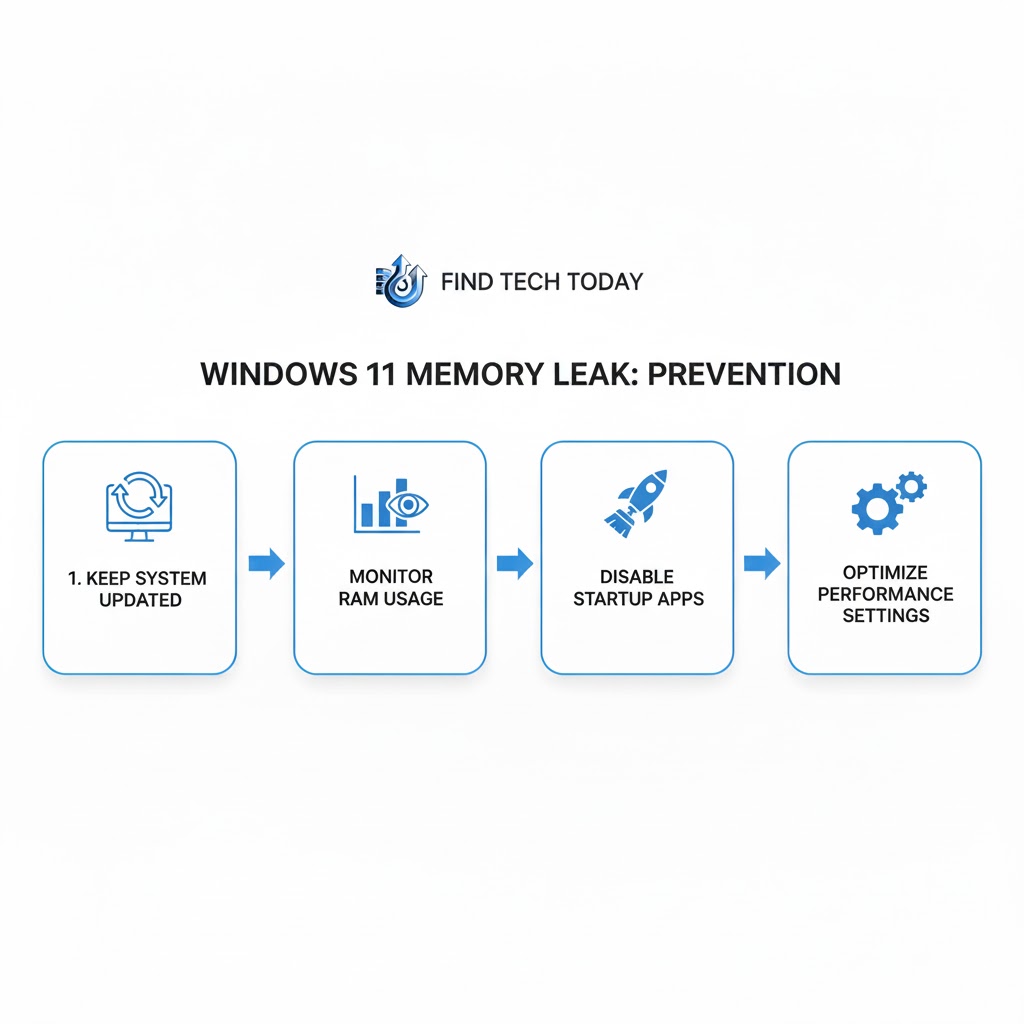
Best Practices to Prevent Windows 11 Memory Leaks
Preventing memory leaks is easier than fixing them. Follow these tips:
-
Keep Windows and drivers updated regularly.
-
Limit startup programs to essential apps only.
-
Monitor Task Manager and Resource Monitor periodically.
-
Avoid running outdated or unsupported applications.
-
Perform routine malware scans and system cleanups.
Experts recommend creating a monthly maintenance schedule, which can dramatically reduce RAM issues and enhance overall performance.
Related Issues and How to Fix Them
Memory leaks often coincide with other Windows 11 problems. For comprehensive PC optimization, check these guides:
-
Learn how to resolve Network Discovery Turned Off Error for smoother network operations.
-
Fix High Disk Usage Windows 11 to prevent system slowdowns caused by simultaneous RAM and disk issues.
-
Solve Ethernet Not Working in Windows 10 if connectivity problems trigger high memory consumption.
These solutions complement memory management and enhance Windows 11 stability.
FAQs About Memory Leaks in Windows 11
Q1: How can I tell if my RAM is leaking in Windows 11?
Check Task Manager or Resource Monitor. If a process steadily consumes more RAM over time without releasing it, it is likely causing a memory leak.
Q2: Can a memory leak damage my computer?
Memory leaks themselves don’t physically damage hardware, but they can cause slowdowns, app crashes, or system instability.
Q3: Will upgrading RAM fix a memory leak?
Adding more RAM may temporarily reduce slowdowns, but the root cause of the leak must still be addressed to prevent recurring high memory usage.
Conclusion
Memory Leak Windows 11 Fix is essential for maintaining optimal system performance. Persistent RAM leaks can slow your PC, reduce productivity, and frustrate users. By monitoring memory usage, updating drivers, managing startup programs, and following preventive practices, you can restore your system’s efficiency. Advanced tools like Windows Memory Diagnostic and performance optimizations help tackle stubborn memory leaks effectively.
Regular maintenance, careful app management, and staying updated are the keys to avoiding high memory consumption problems. For more insights and related fixes, visit Find Tech Today to explore guides on optimizing Windows 11 performance and troubleshooting system errors.