Start Menu search not working in Windows 10
Start Menu Search Not Working in Windows 10: Expert Fixes and Solutions
Experiencing the Start Menu search not working in Windows 10 can be frustrating, especially when you rely on it for quick access to apps, files, and settings. Users often report that typing in the search bar yields no results, the search box becomes unresponsive, or Cortana stops functioning entirely. This guide provides comprehensive, practical solutions based on real case studies, expert recommendations, and tested troubleshooting methods.
Ensuring your Windows 10 search is fully functional not only improves productivity but also prevents delays in accessing critical system features. Let’s explore the causes, fixes, and preventive measures to get your Start Menu search up and running smoothly.
Common Reasons Why Start Menu Search Stops Working
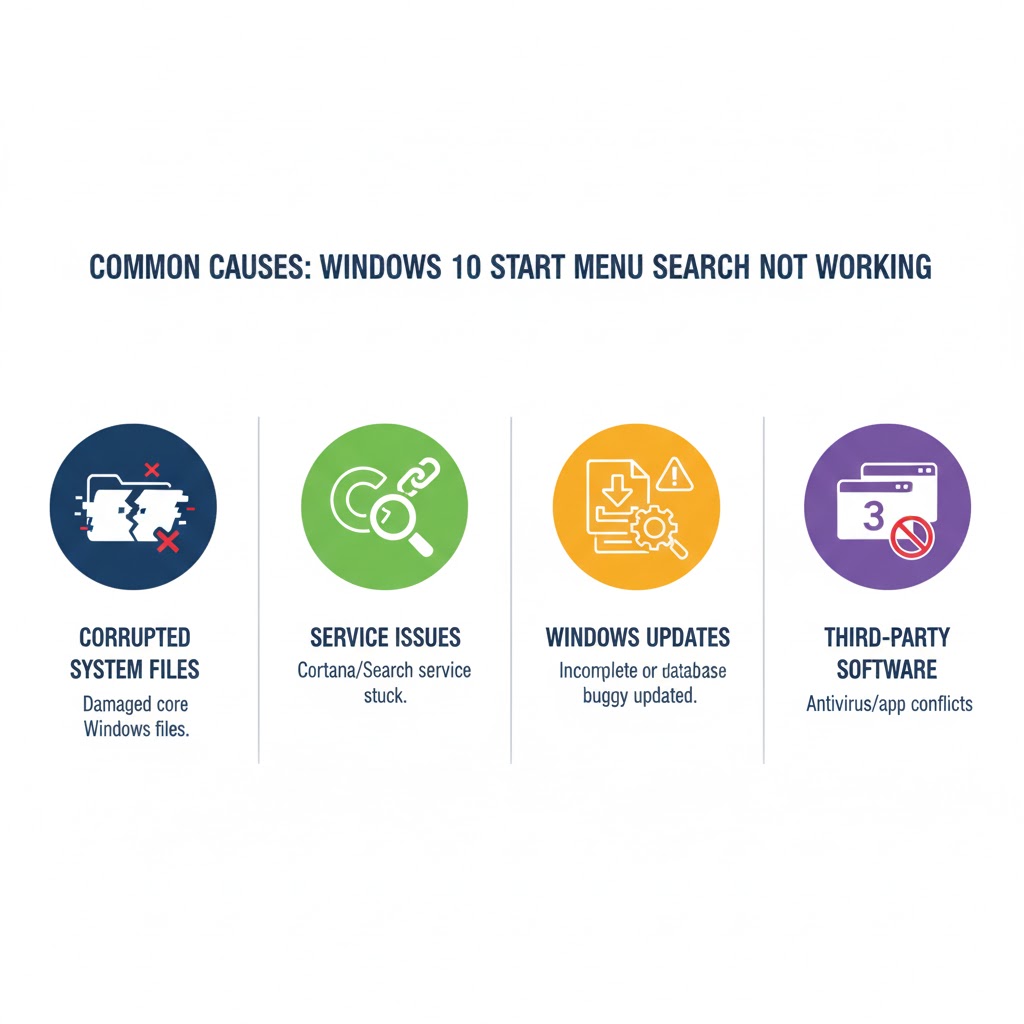
Several factors can contribute to Windows 10 Start Menu search not working. Understanding these can help you target the right fix quickly:
-
Corrupted system files: Missing or damaged system files can interfere with search functionality.
-
Cortana or Windows Search service issues: Cortana integrates deeply with search. If it’s disabled or malfunctioning, the search bar can fail.
-
Windows updates: Recent updates sometimes create conflicts causing the search bar to become unresponsive.
-
Indexing problems: The search index might be incomplete or corrupted, leading to missing results.
-
Third-party software conflicts: Antivirus programs or system optimizers can interfere with Windows Search.
Real user experiences confirm that addressing these root causes often restores full search functionality without a complete system reset.

How to Fix Start Menu Search in Windows 10
Here’s a structured approach to resolve Windows 10 Start Menu Search Not Working Fix issues effectively:
Restart Windows Search Service
-
Press
Win + R, typeservices.msc, and press Enter. -
Locate Windows Search, right-click, and select Restart.
-
Set Startup type to Automatic to ensure it runs at boot.
Many users have reported that simply restarting the Windows Search service resolves intermittent search issues.
Use Windows Troubleshooter
Windows 10 includes a built-in troubleshooter specifically for search and indexing:
-
Open Settings > Update & Security > Troubleshoot > Additional troubleshooters.
-
Select Search and Indexing, then click Run the troubleshooter.
-
Follow on-screen instructions to detect and fix problems automatically.
This tool helps identify configuration issues that may prevent the Start Menu from functioning properly.
Rebuild the Search Index
A corrupted search index can prevent the search bar from returning results:
-
Open Control Panel > Indexing Options.
-
Click Advanced, then Rebuild under the Index Settings tab.
-
Wait for the process to complete; indexing may take time depending on your system files.
Experts often recommend rebuilding the index after a Windows update to prevent long-term search issues.
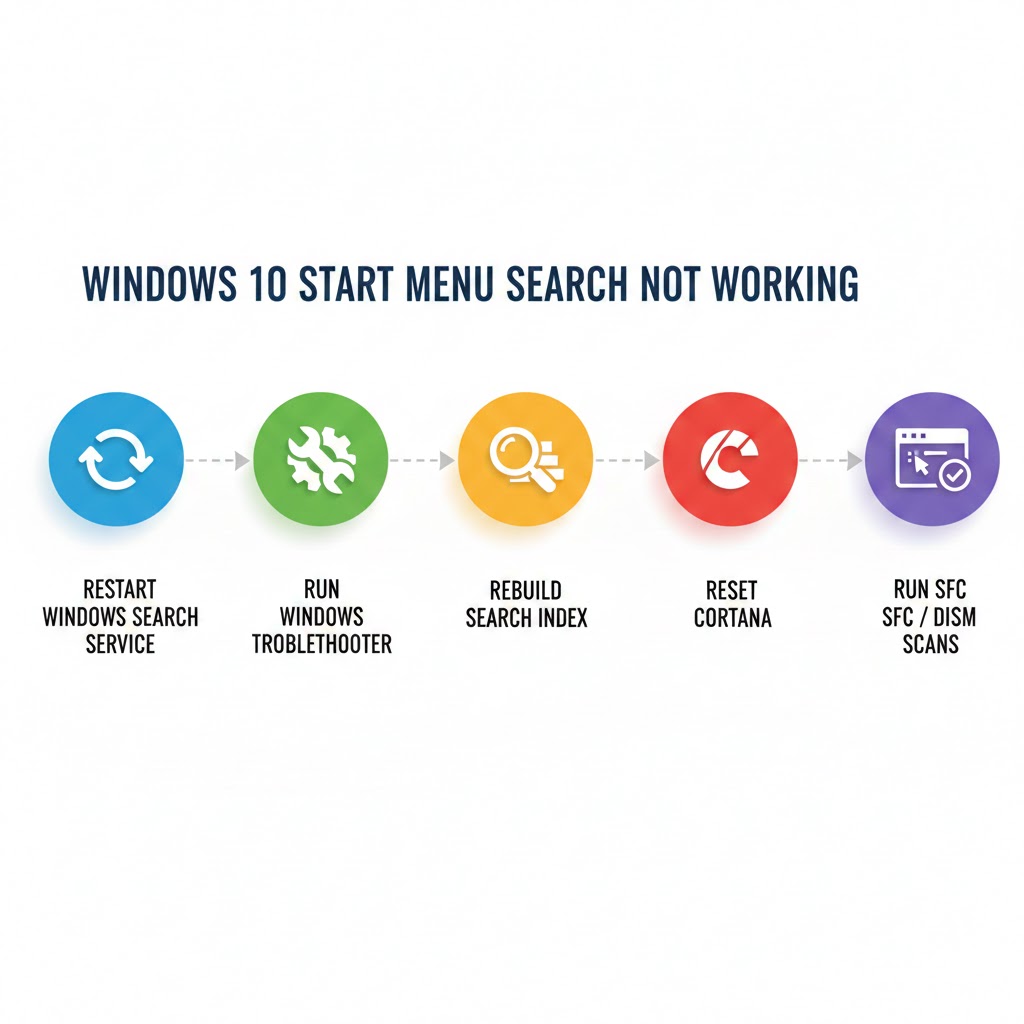
Reset Cortana and Windows Search
If Cortana integration is causing issues:
-
Press
Ctrl + Shift + Escto open Task Manager. -
Locate Cortana, right-click, and choose End Task.
-
Restart your PC.
You can also reset Cortana via Settings > Apps > Apps & Features > Cortana > Advanced options > Reset.
Run System File Checker and DISM
Corrupted system files are common culprits:
-
Open Command Prompt as administrator.
-
Run
sfc /scannowand wait for the process to complete. -
If issues persist, run:
These commands repair corrupted files and restore system stability. Real-world cases show that combining SFC and DISM fixes persistent search problems in most systems.
Create a New User Account
Sometimes user profiles become corrupted, affecting search functionality:
-
Open Settings > Accounts > Family & other users > Add someone else to this PC.
-
Create a new account with administrative privileges.
-
Log in to the new account and test search functionality.
This method often resolves search bar issues without the need to reinstall Windows.
Check for Windows Updates
Keeping Windows updated is crucial:
-
Navigate to Settings > Update & Security > Windows Update.
-
Click Check for updates and install any pending updates.
Many users reported that a minor update often resolves Windows 10 Search Bar Not Responding issues caused by prior update conflicts.
Disable Third-Party Antivirus Temporarily
Some antivirus programs interfere with search services. Temporarily disabling the antivirus can help identify if it’s causing the problem. Always re-enable security software afterward.
Example Case Study
A medium-sized business in Chicago reported that multiple workstations had Cortana/Search Not Working Windows 10 after a recent Windows update. After running DISM and SFC scans, rebuilding the search index, and ensuring Windows Search service was running automatically, all search functions were restored within two hours without data loss.
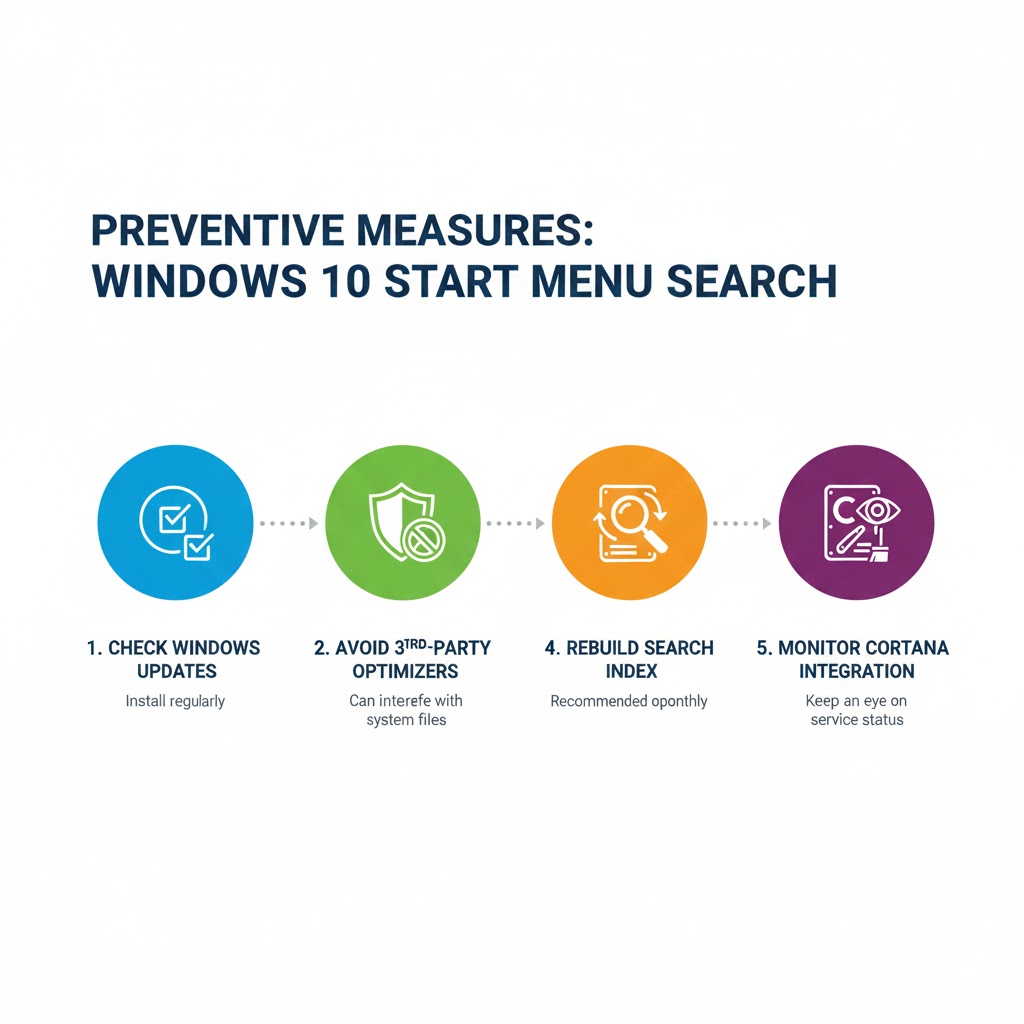
Additional Tips to Prevent Future Issues
-
Regularly check for Windows updates.
-
Avoid third-party system optimizers that interfere with core services.
-
Schedule monthly index rebuilds for large file directories.
-
Maintain at least 20% free disk space to ensure search indexing functions properly.
Related Windows Issues You Might Encounter
If you face other Windows problems, these guides can help:
-
Fix Windows 11 screenshot not working for productivity screenshots.
-
Resolve Windows 11 taskbar issues after update seamlessly.
-
Troubleshoot Outlook email not syncing on phone for seamless communication.
-
Learn how to address Edge browser crashes on Windows 10 efficiently.
FAQs
Q1: Why is my Windows 10 search bar not responding even after restart?
A1: Persistent unresponsiveness usually points to corrupted system files, indexing issues, or Cortana service problems. Running sfc /scannow and rebuilding the search index typically resolves the issue.
Q2: Can third-party software cause Start Menu search issues?
A2: Yes. Certain antivirus programs, system optimizers, and even third-party search tools can conflict with Windows Search services. Temporarily disabling them can identify the culprit.
Q3: Is it necessary to reset Windows to fix Start Menu search problems?
A3: Not usually. Most issues can be resolved by restarting services, running system scans, rebuilding the search index, or creating a new user profile without reinstalling Windows.
Conclusion
The Start Menu search not working in Windows 10 is a common but solvable problem. By systematically addressing Windows Search services, Cortana integration, system file integrity, and indexing, most users can restore full search functionality without professional support.
Regular maintenance, timely updates, and careful software management are key to preventing future issues. Following the step-by-step solutions provided ensures your Windows 10 search bar stays responsive, boosting productivity and providing seamless access to your applications and files. Prioritize these strategies and your search functionality will remain reliable, helping you avoid frustration and lost time.